The built-in Logbook can be your main station log or work alongside Log4OM and other loggers. It keeps the full ADIF record, adds country, zones and prefix details, and can exchange new QSOs and later updates with a connected logger.
Import and export ADIF; existing contacts are not duplicated during import. The logger link reads the external log and writes new QSOs to it without changing the logger’s own database.
01 / THE LOGBOOK
Search, measure and map your activity.
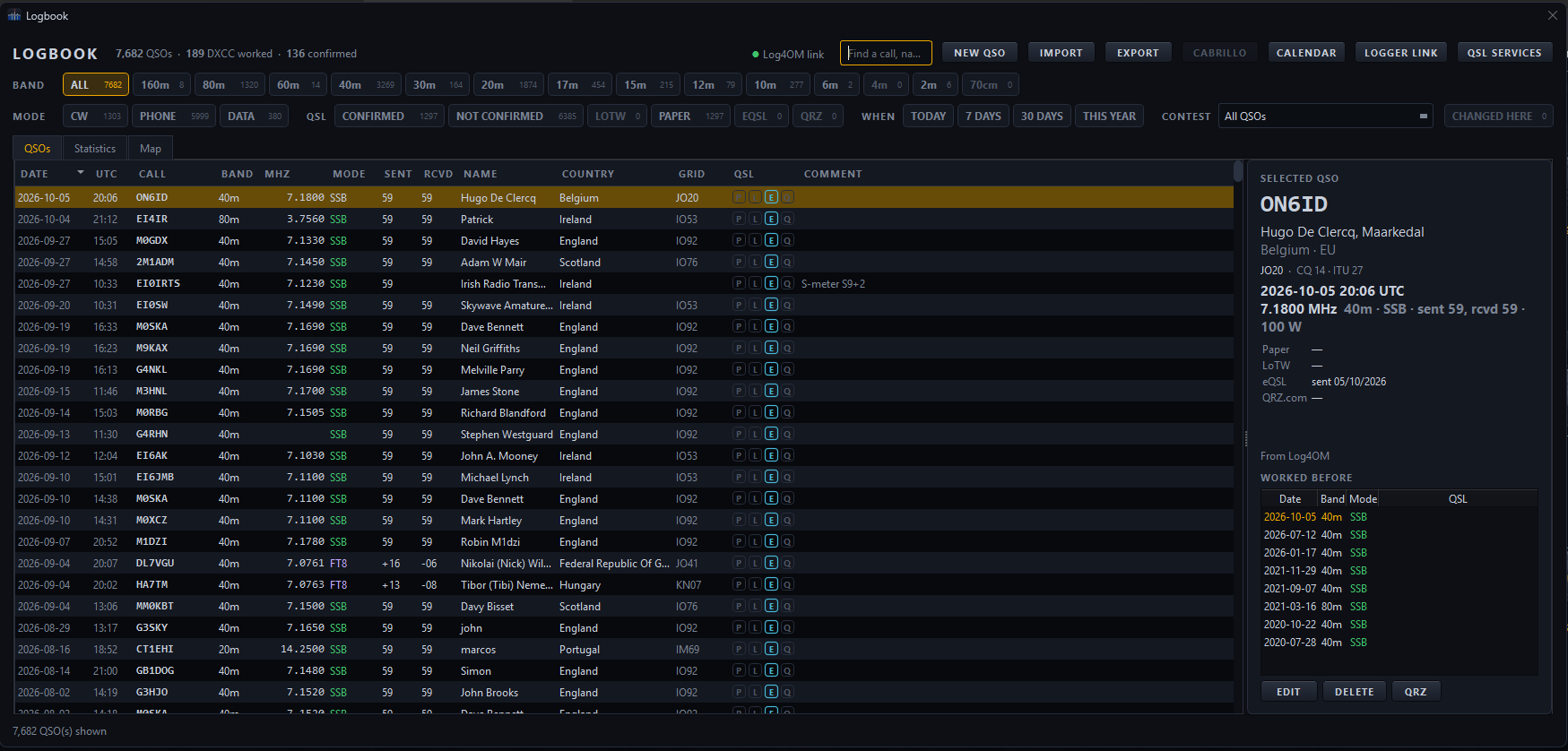
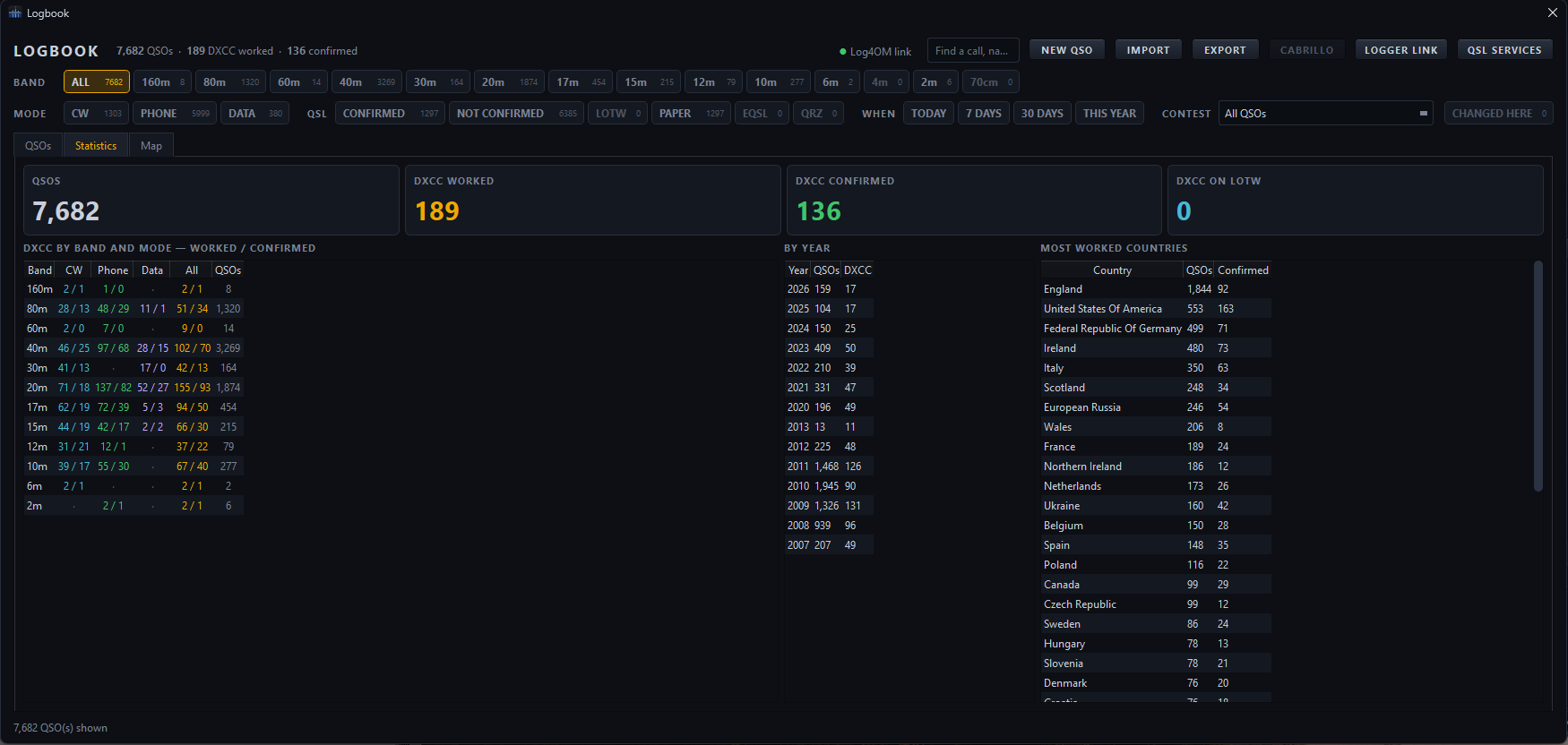
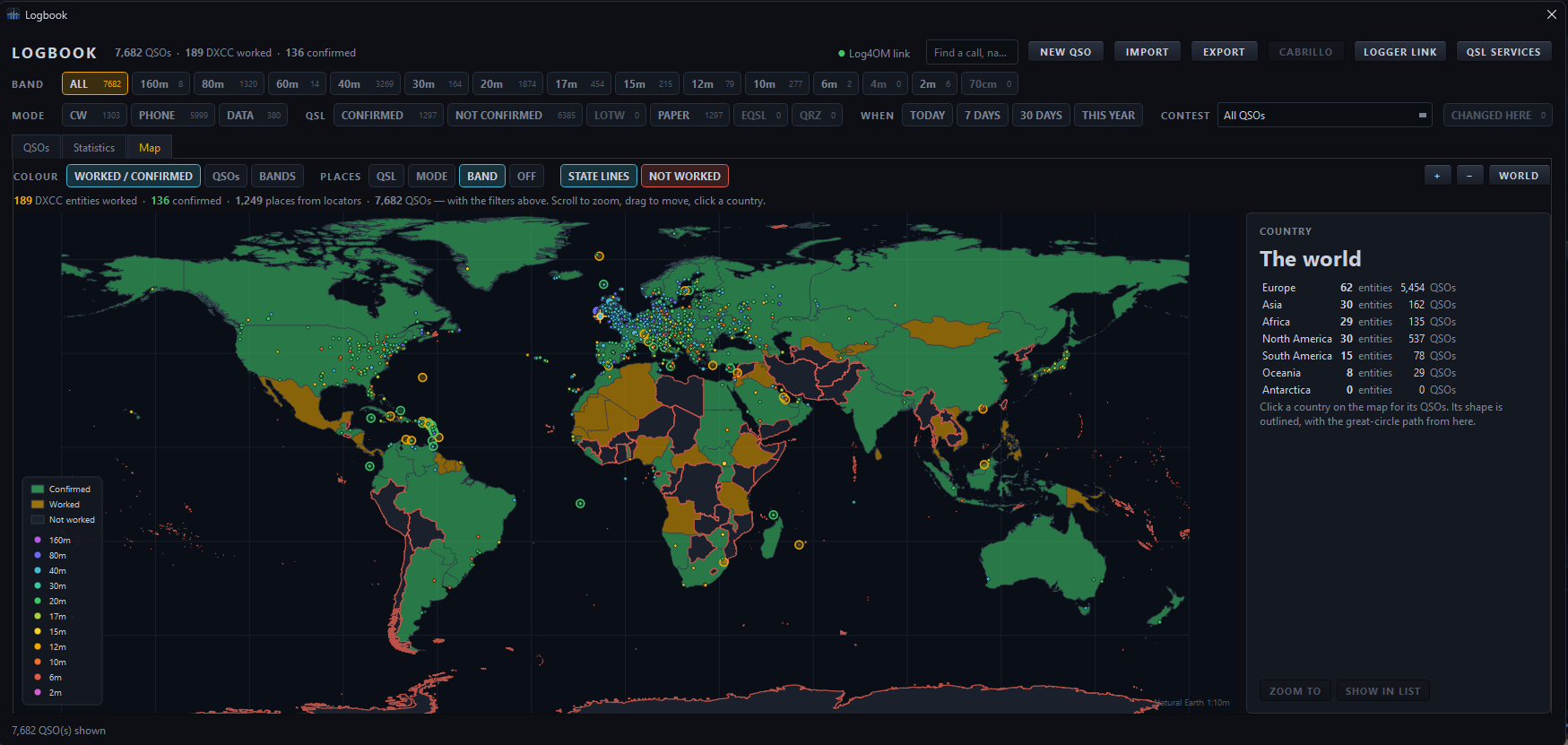
Filter by band, mode, QSL status, date, contest, callsign, name, country or locator. The same filters carry through the QSO list, station statistics, world map and award totals.
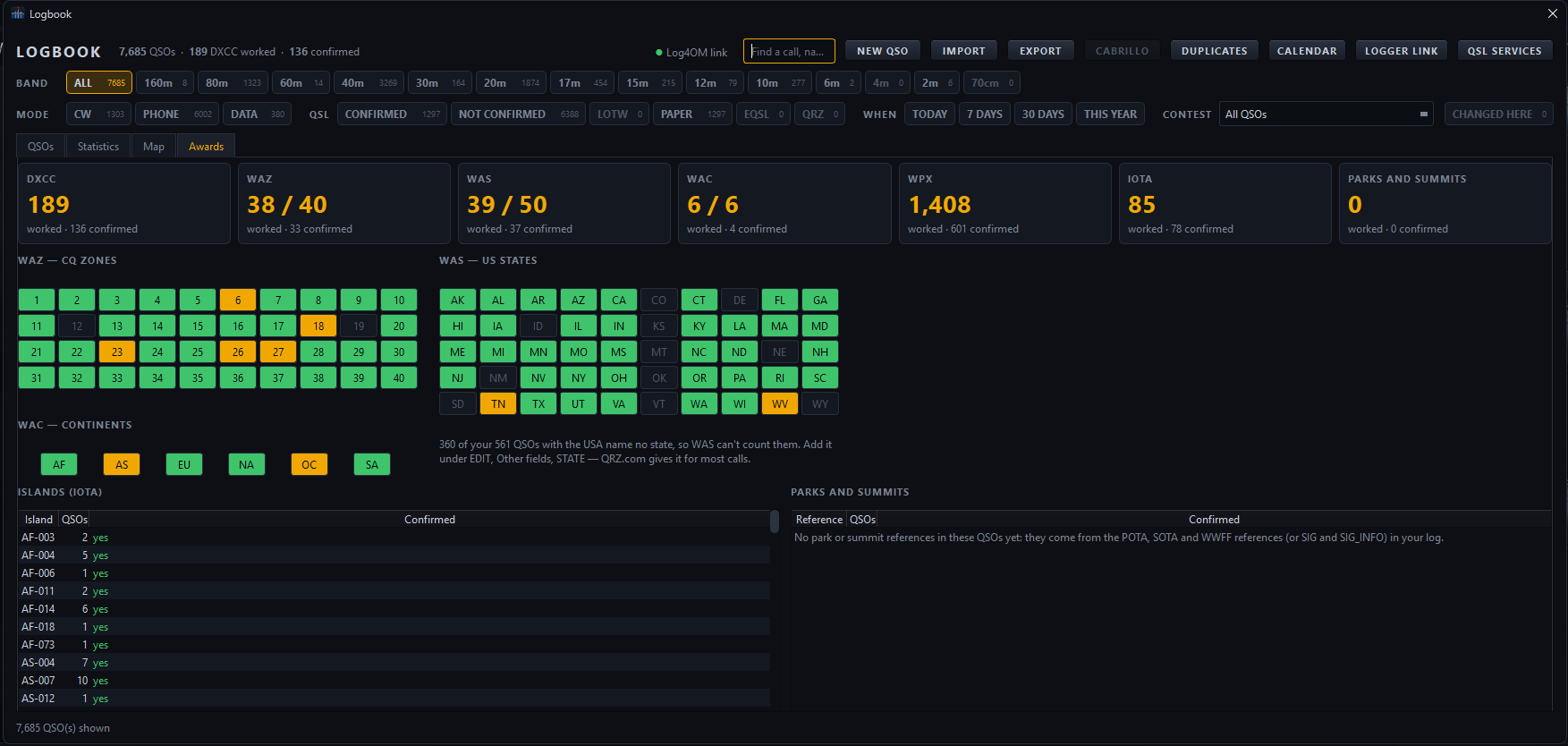
+ View full sizeThe QSO list, filters, QSL status and selected contact’s previous activity appear together.Logbook+ View full sizeStation totals break down by band, mode, year and country.Statistics+ View full sizeCountries distinguish worked from confirmed; logged locations appear as band-coloured points.Worked map+ View full sizeAward totals respond to the band, mode, date and contest filters above.Awards
Awards follow your filters
Track worked and confirmed DXCC, WAZ, WAS, WAC, WPX and IOTA, as well as POTA, SOTA and WWFF references. CQ zones, US states and continents use a clear worked/confirmed grid; islands and parks appear in their own lists.
Find duplicates safely
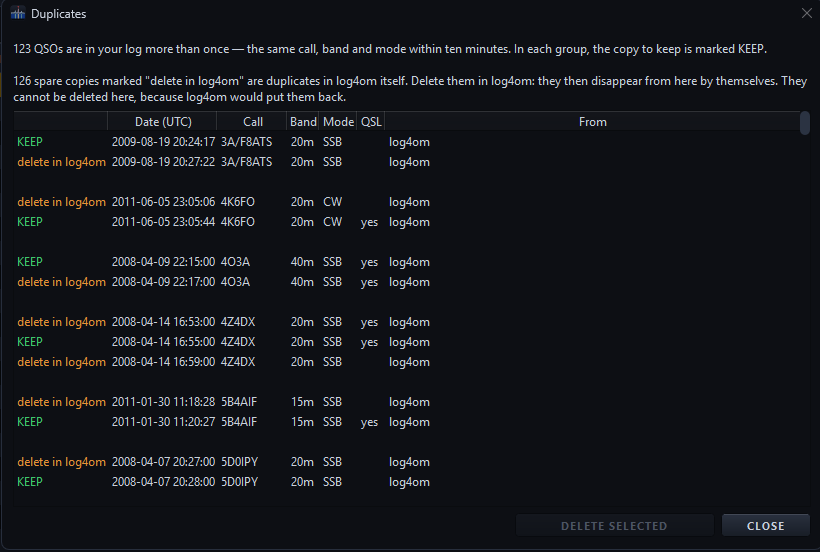
The duplicate finder groups the same callsign, band and mode logged within ten minutes. It marks the preferred record to keep; you decide whether to delete spares. A duplicate already in Log4OM is identified for removal there, so it cannot be re-imported by the logger link.
Automatic recovery copies
The application backs up the logbook and settings daily and keeps the newest ten copies. A manual backup and the backup-folder shortcut are available from the RADIO menu.
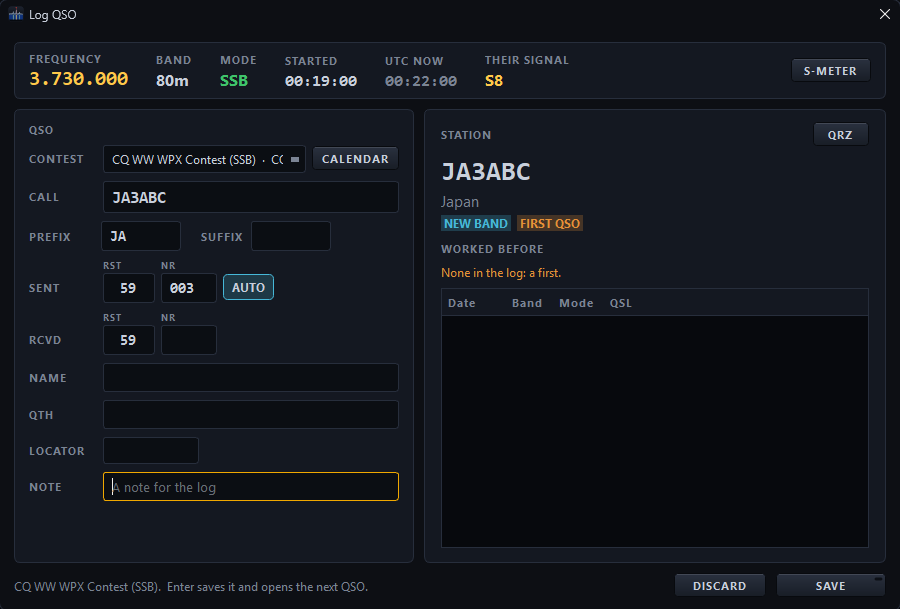
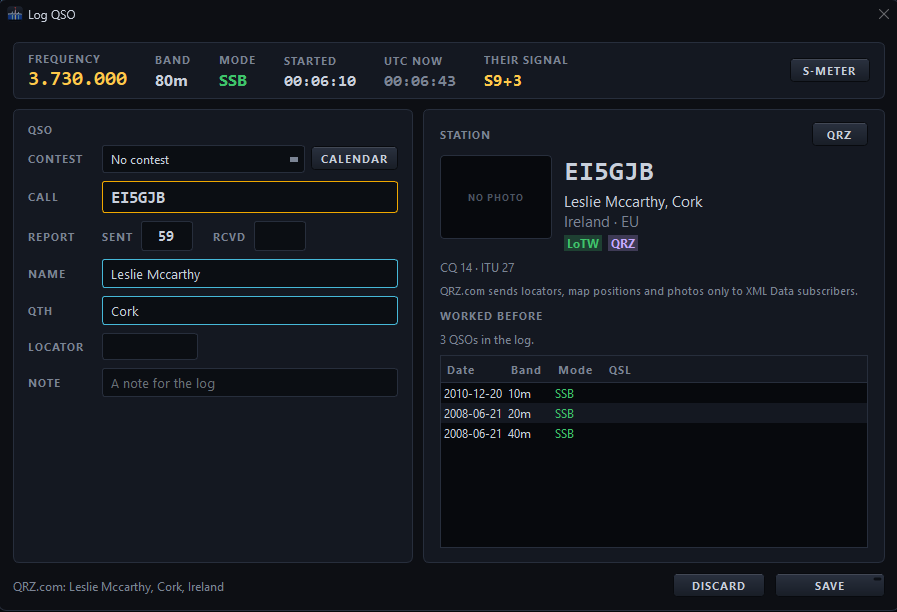
+ View full sizeThe review marks the record to keep and shows where each spare copy must be removed.Duplicate review+ View full sizeFrequency, mode and signal are already available; the station card adds location and worked-before context.QSO entry
02 / CONTESTS & QSL SERVICES
From first exchange to final confirmation.
Contest entry adapts the QSO form to the selected event. Serial numbers, duplicate warnings and running totals help during the contest; the calendar helps you plan the next one.
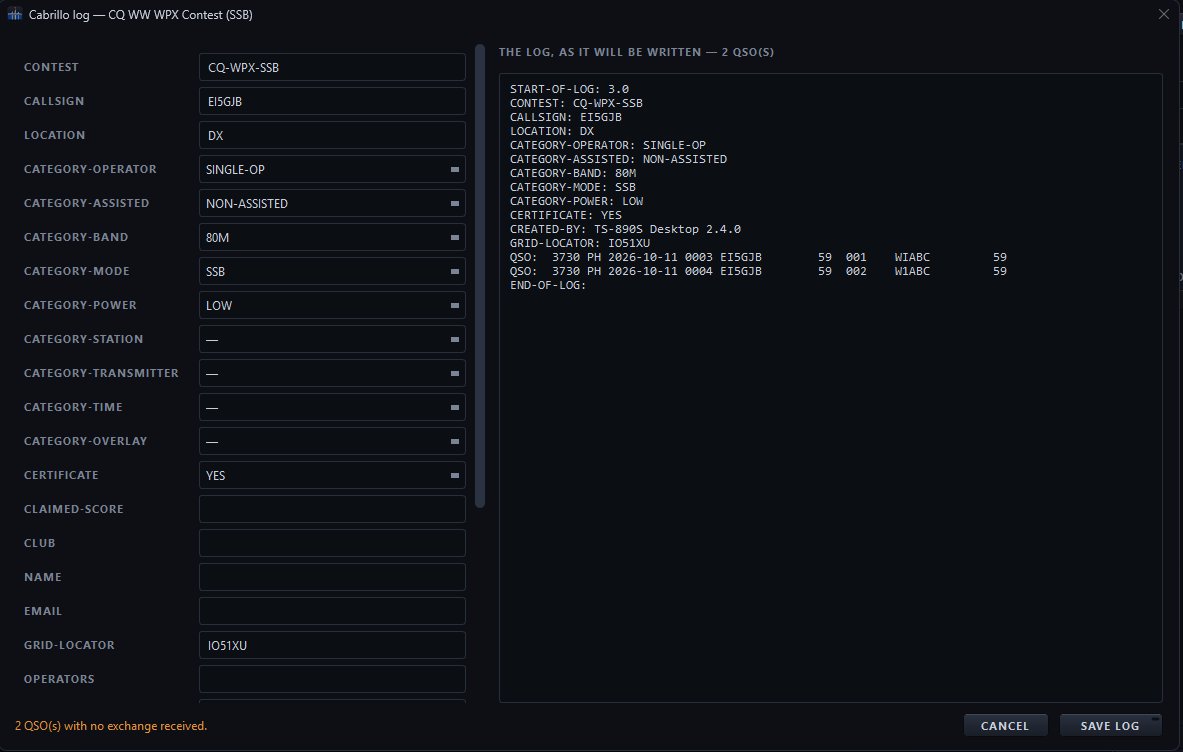
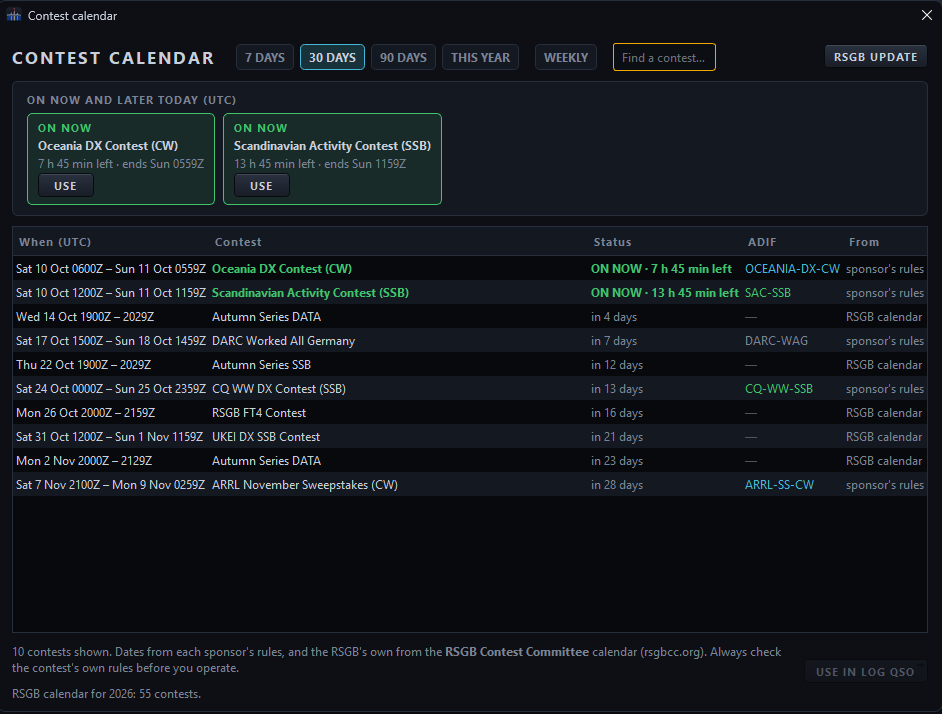
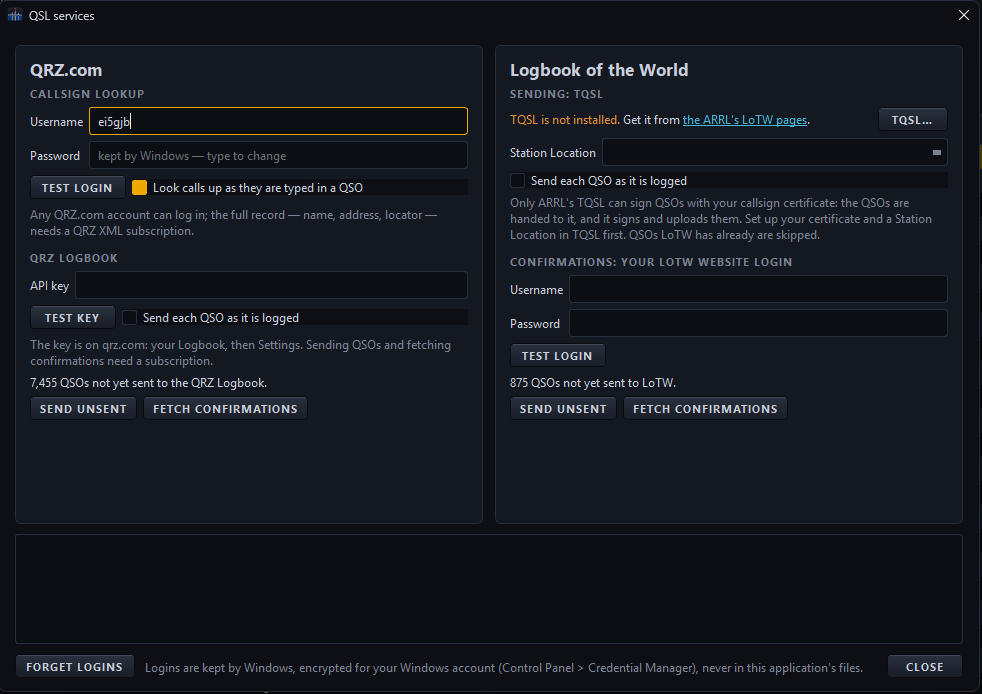
+ View full sizeThe contest-specific exchange and contact status are visible while entering the QSO.Contest logging+ View full sizeReview the contest header and output preview before saving the Cabrillo log.Cabrillo export+ View full sizeThe calendar puts current and upcoming events in UTC and can prepare the Log QSO form.Contest calendar+ View full sizeQRZ.com and Logbook of the World have separate sending and confirmation controls.QSL services
A focused contest form
Choose from the contests named by ADIF. The application includes built-in exchanges for many widely used events, fills in details such as prefix and zones from the callsign, and can advance serial numbers automatically. Saving keeps the form ready for the next contact.
Track the session, export the log
A running tally counts QSOs, bands, countries, zones, prefixes and recent operating rate. It does not attempt to score each contest. Export the finished entry as Cabrillo or ADIF; the Cabrillo view shows the outgoing log and flags missing header information.
Choose the next event
The contest calendar lists what is on now, later today and coming up. Select an event with USE to prepare the QSO window. Dates come from contest sponsors and the RSGB Contest Committee calendar.
QSL services
Use QRZ.com for callsign lookup and its logbook, and ARRL Logbook of the World through TQSL. Send individual QSOs as you log them or send unsent contacts in a batch, then fetch confirmations.
QRZ lookup can fill names, QTH and other station details as a call is entered. Full QRZ record data and photographs require an XML subscription. Account credentials are stored in the operating system’s credential manager or keychain.
+ View full sizeQRZ.com and Logbook of the World have separate sending and confirmation controls.QSL services
03 / ACTIVITY & PROPAGATION
See who is active. Know where to listen.
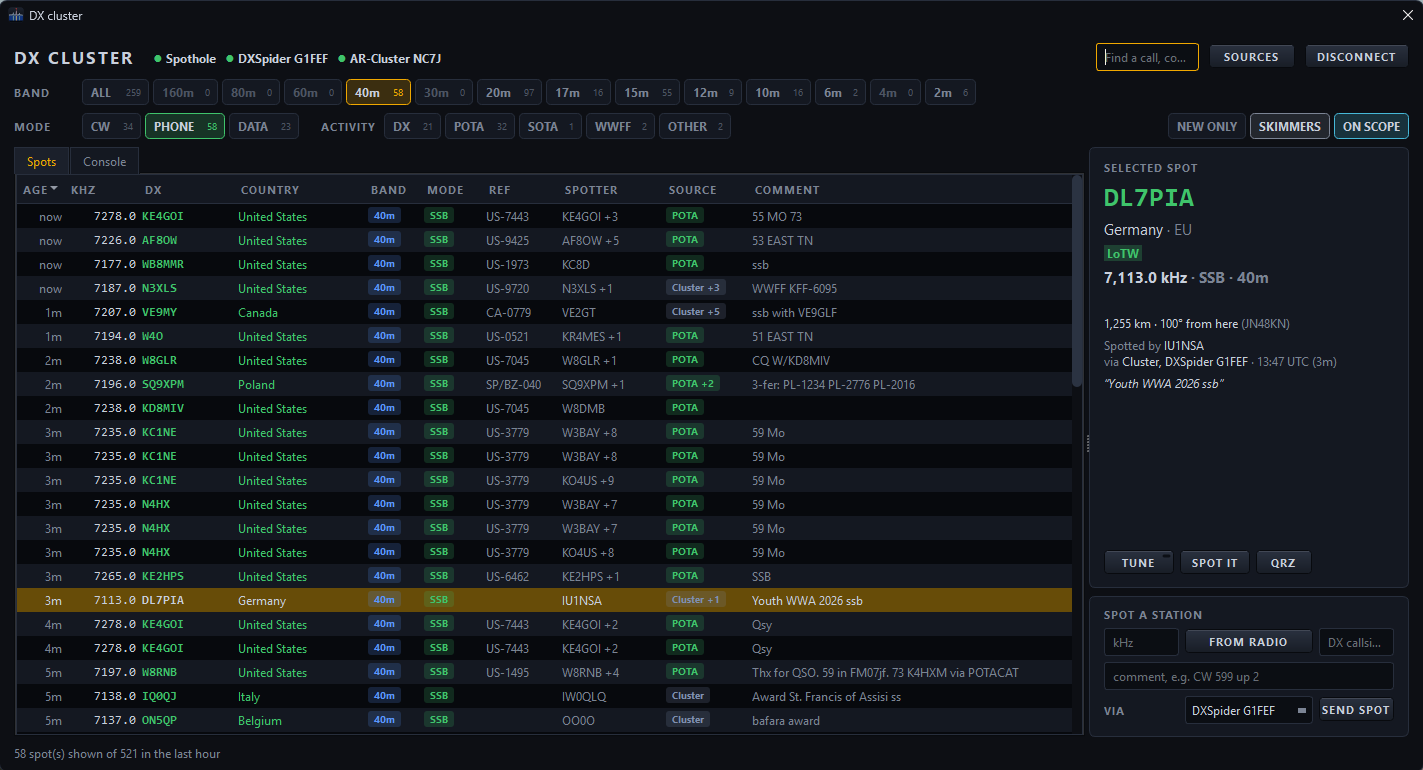
Combine spots, decoded signals, reception reports and propagation views to decide where to tune and when to call.
+ View full sizeFilter live spots, inspect the selected station and tune or submit a spot.DX cluster
CALLS TO WATCH FOR / RADIO → ALERTS
Let the application keep an ear out.
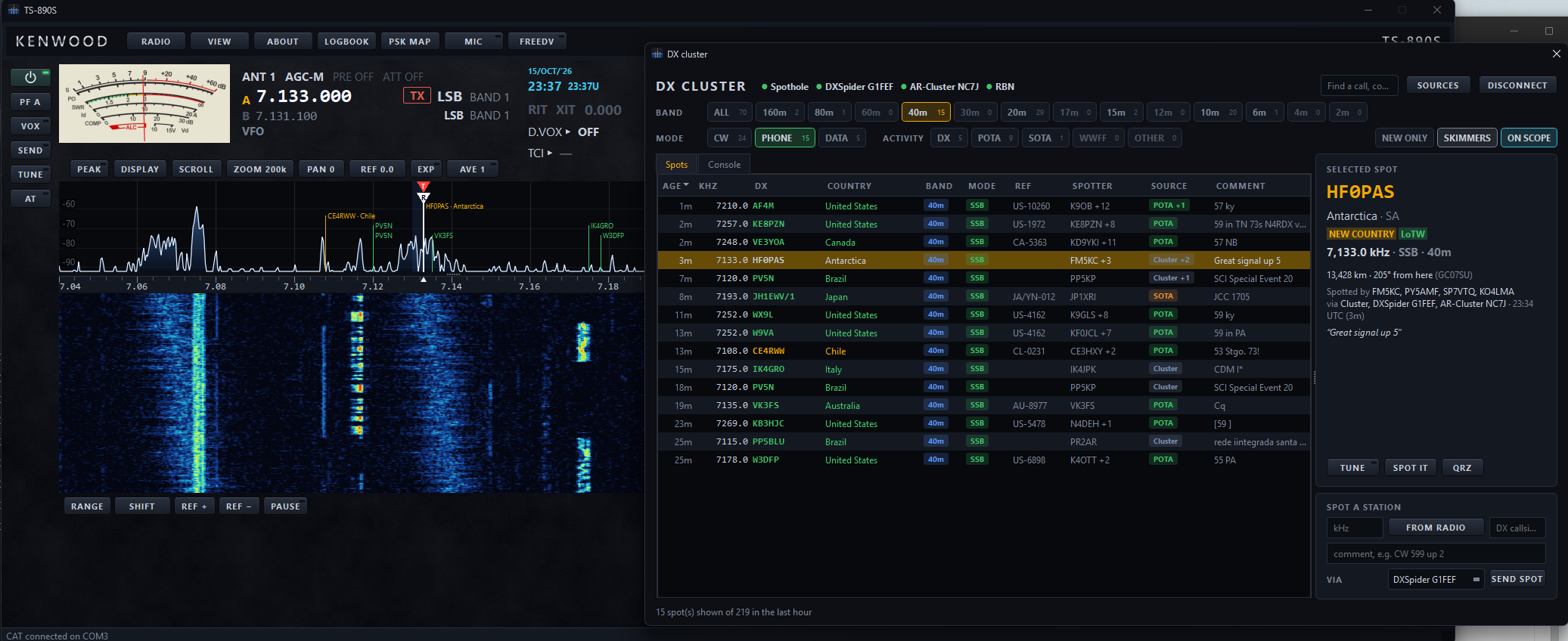
Add a callsign, a callsign pattern or a DXpedition prefix. A * stands for any letters, and calls still match with portable or mobile suffixes. Alerts can come from DX cluster spots, Reverse Beacon Network skimmers, FT8 decodes and calls recognised by the CW decoder.
Choose status-bar, sound or small-window alerts. A cluster alert includes a Tune action; the same call is reported at most once per band in thirty minutes.
+ View full sizeON SCOPE and SKIMMERS place current spot and skimmer calls on the bandscope.Calls on the scope
Propagation, in four views
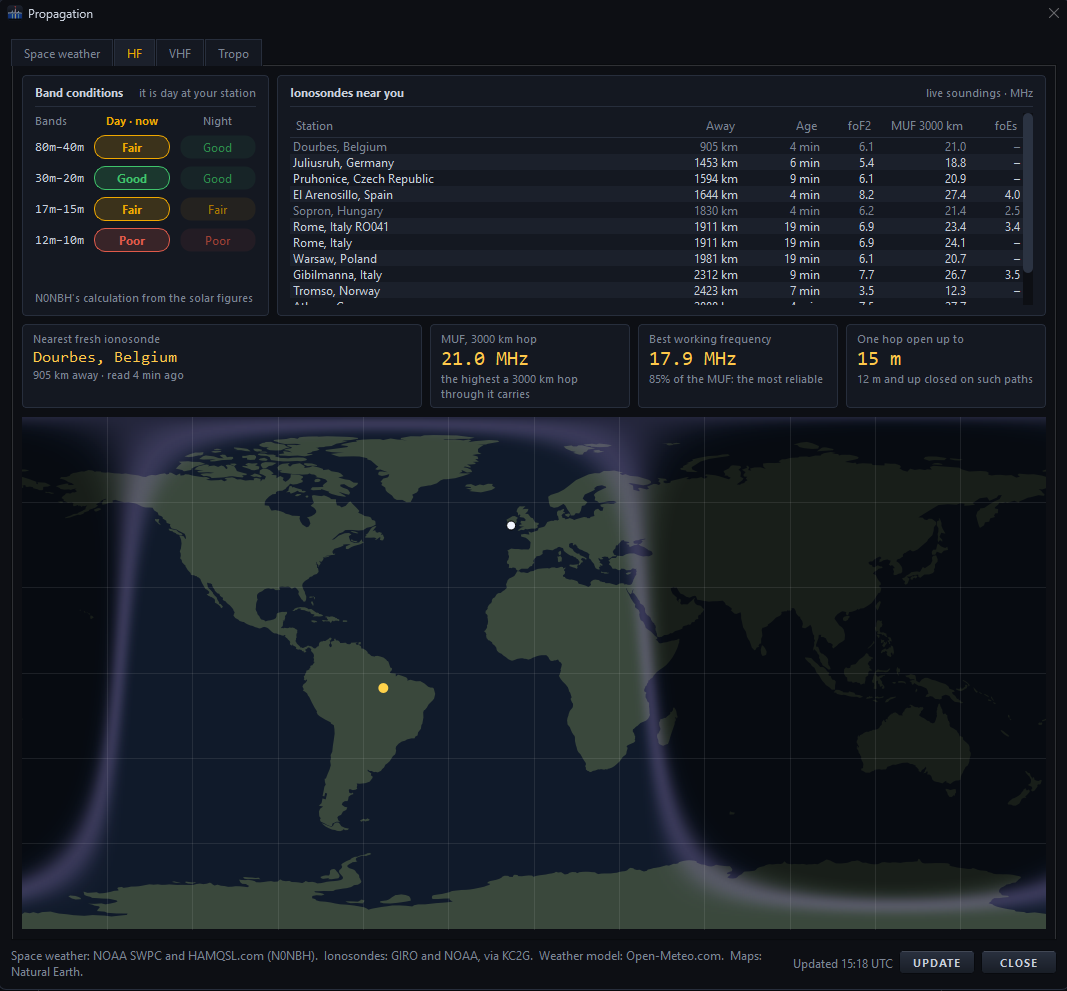
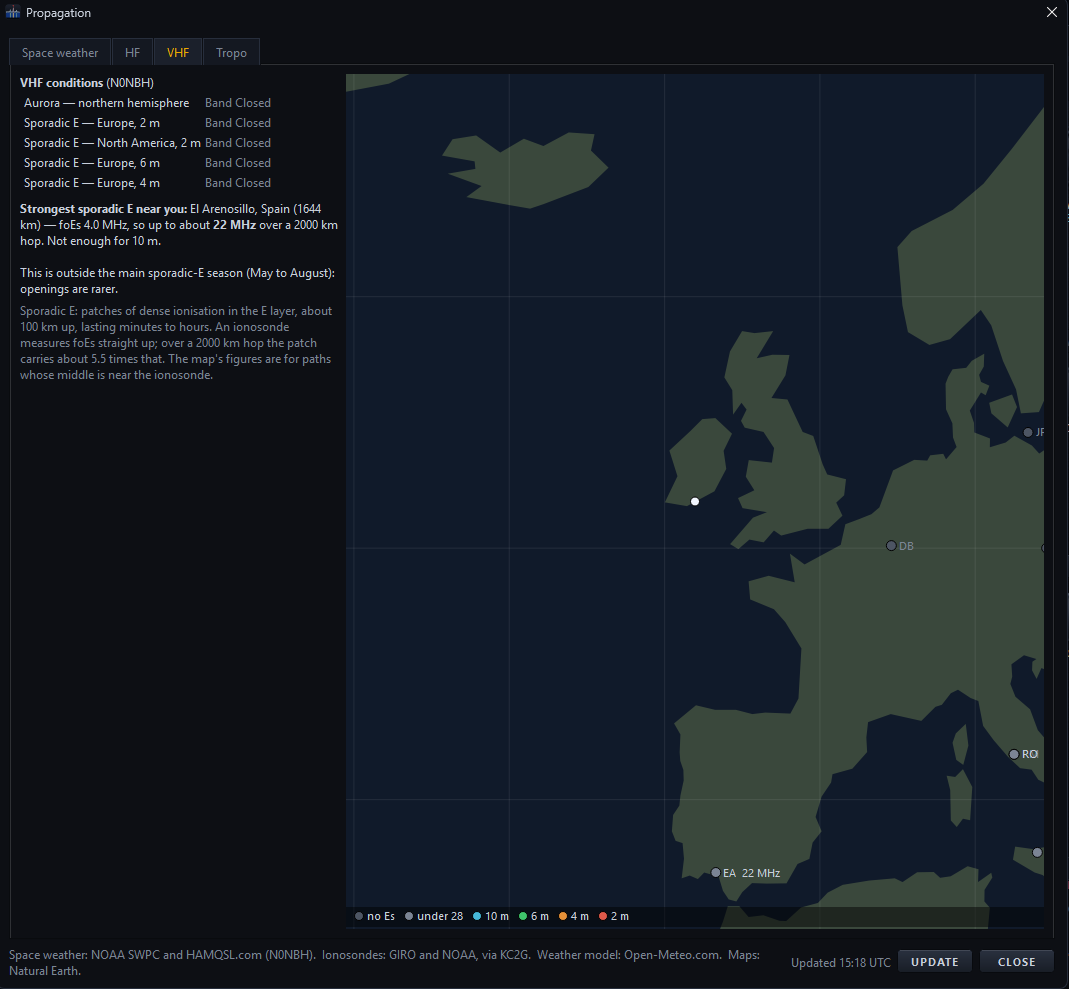
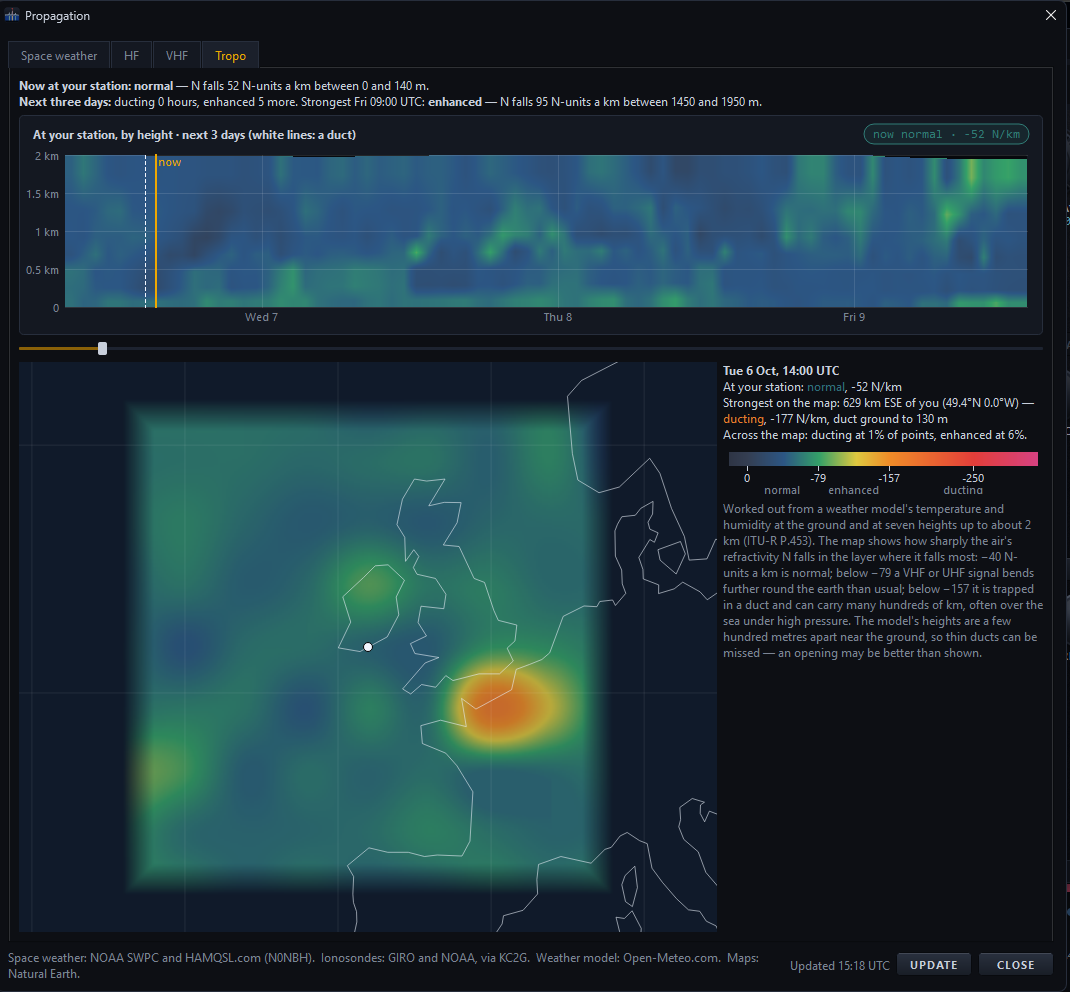
Space weather, HF conditions, VHF openings and tropospheric ducting each have a dedicated view. HF uses live ionosonde readings and a 3,000 km-hop MUF estimate; VHF maps sporadic E and aurora; Tropo shows a three-day forecast around your station and across the map.
+ View full sizeLive ionosonde values and an estimated maximum usable frequency add context to HF band conditions.HF+ View full sizeNearby ionosonde readings help show where sporadic E may open a VHF band.VHF+ View full sizeA three-day model forecast shows enhanced paths and predicted ducting around the station.Tropospheric ducting
04 / DIGITAL VOICE & AUDIO
Talk through the panel. Shape the sound.
Connect a headset microphone to the computer for transmit audio, use FreeDV’s built-in digital voice modes, or add VST 3 processing to the microphone and listening paths.
FREEDV / RADE, 700D, 700E & 1600
Digital voice in the operating panel
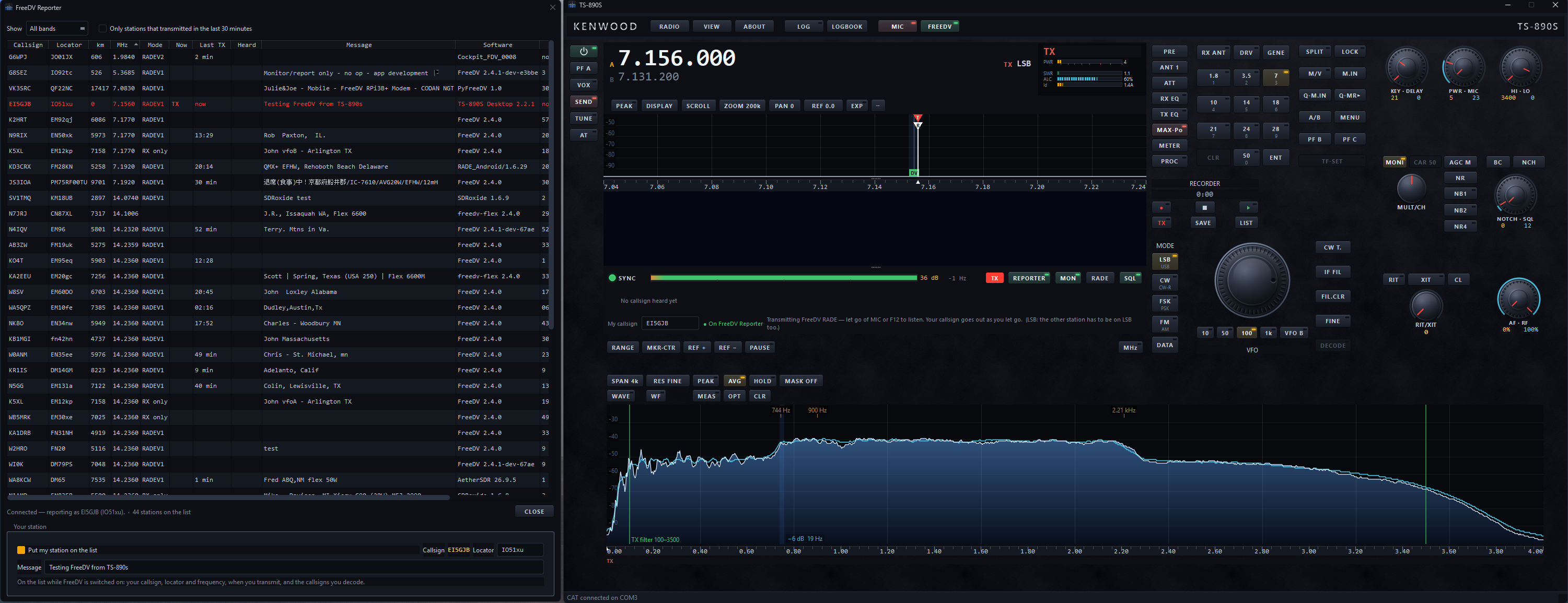
Open the FreeDV pane beneath the waterfall and choose RADIO → Set up for FreeDV to apply the radio mode and filters. The pane shows sync, signal margin and the heard callsign. Hold MIC or F12 to reply through the computer microphone.
FreeDV Reporter lists stations, modes, frequencies and reception reports; double-click a station to tune. Your station is shared only after you opt in using its listing control.
+ View full sizeThe pane identifies a decoded station and shows signal margin and FreeDV mode.FreeDV pane+ View full sizeReporter stations can be selected for tuning; listing your own station is an explicit choice.FreeDV Reporter
VST 3 / MICROPHONE & LISTEN CHAINS
Your audio tools, in a controlled chain
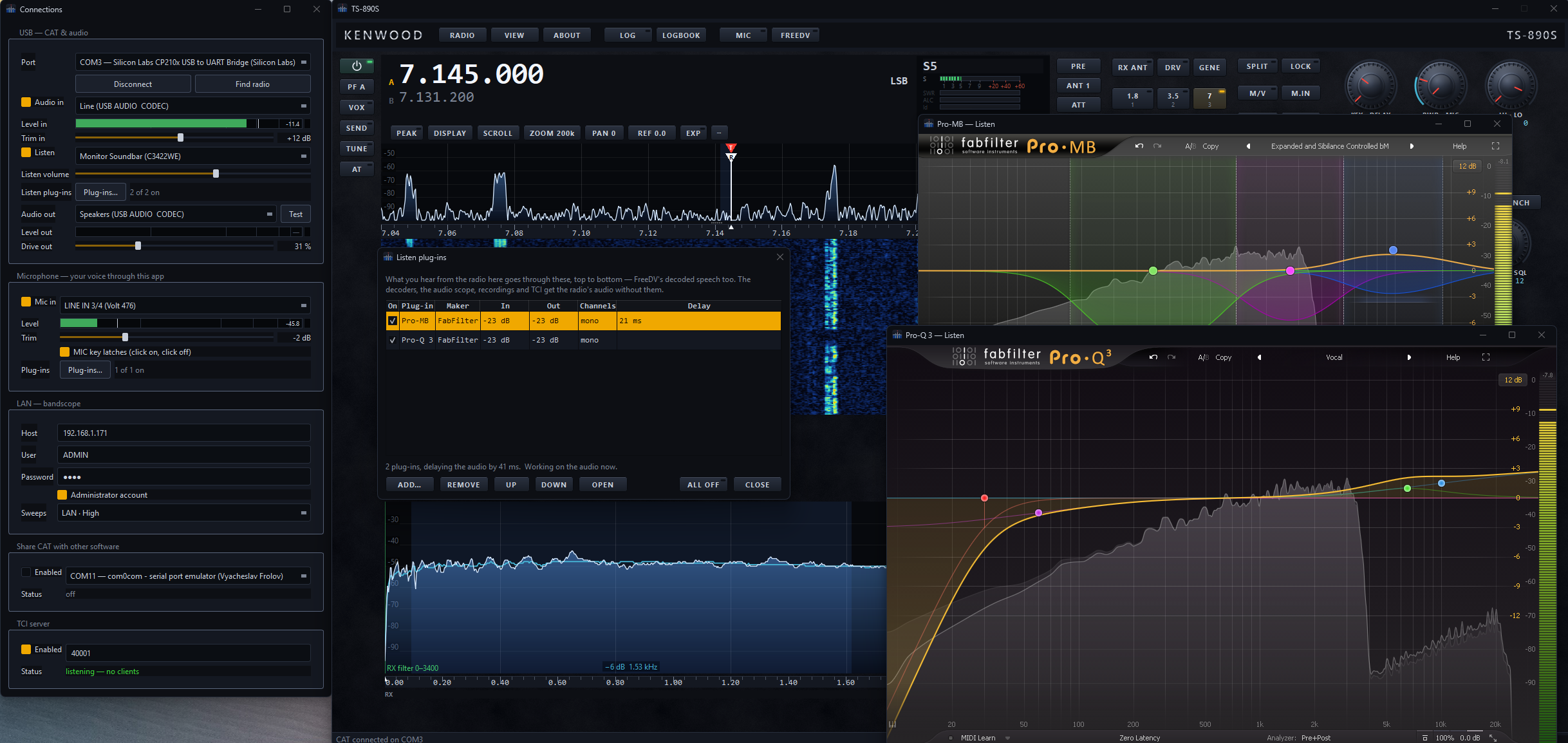
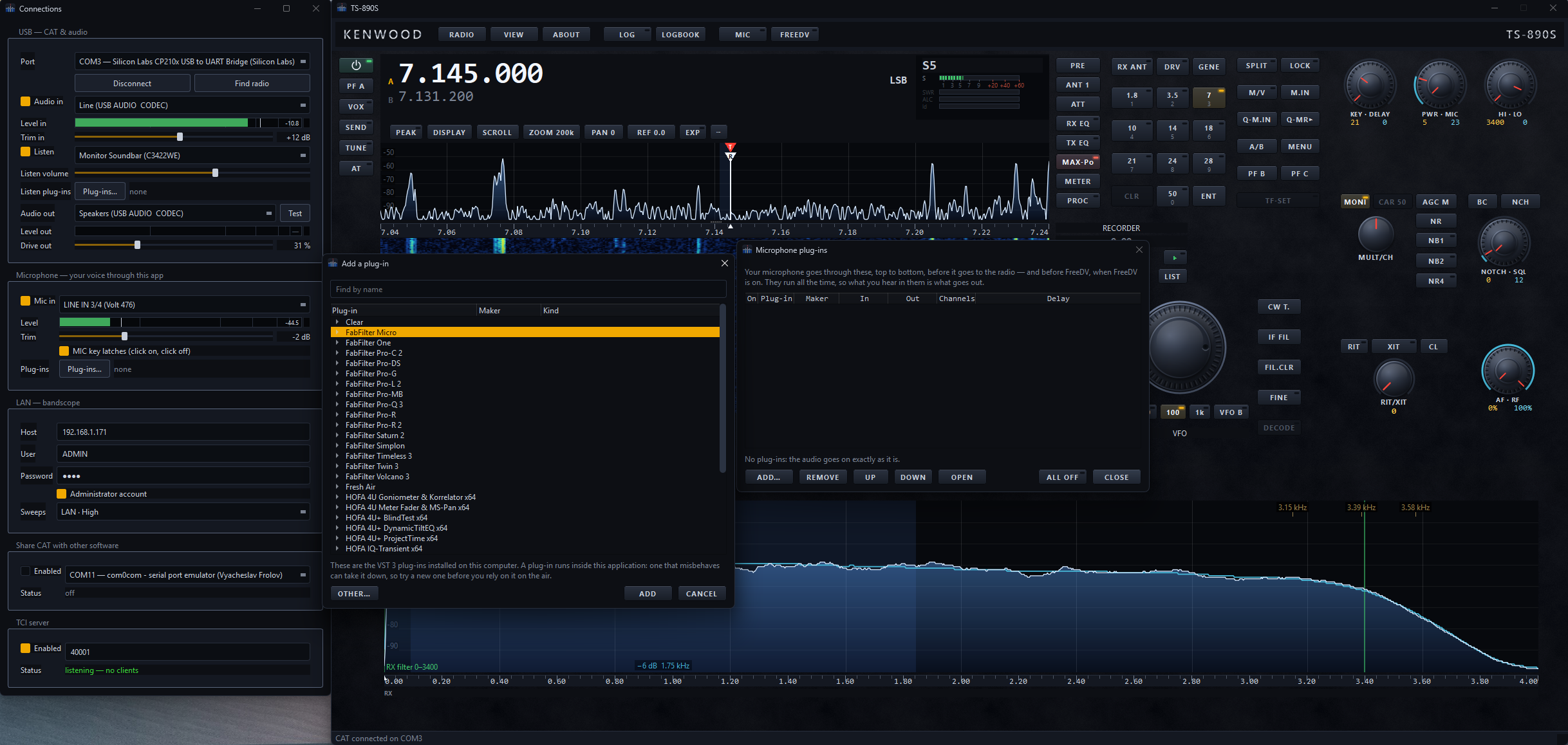
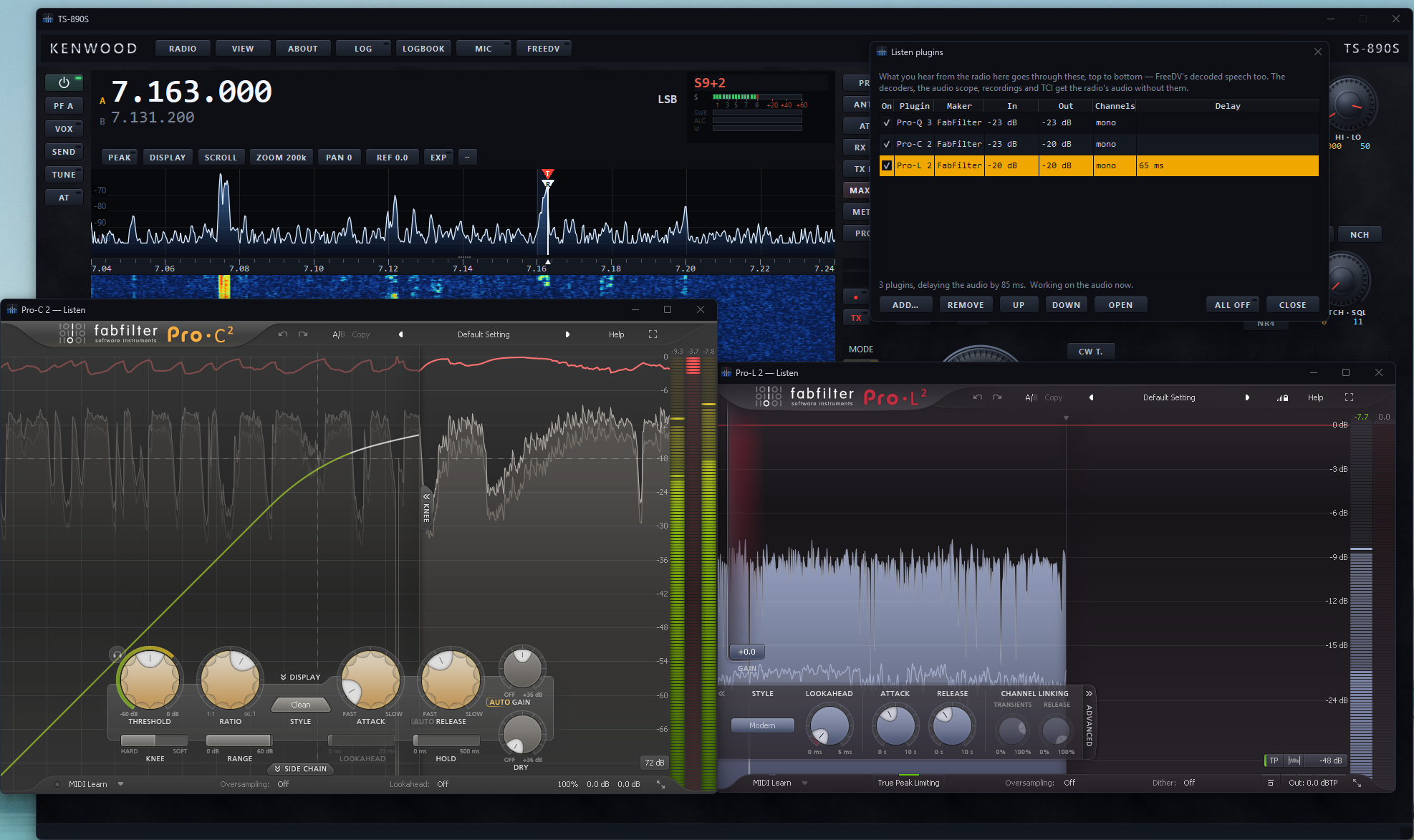
Add compatible equalizers, compressors, de-essers and noise reducers. One chain processes your microphone before it reaches the radio; another processes the audio you hear, including decoded FreeDV voice.
Enable or bypass plugins, change their order, open their controls, and compare with ALL OFF. Processing runs separately so a plugin failure can be isolated from the main operating panel. The README notes that plugins have been tried on Windows so far.
+ View full sizeThe Listen chain processes audio sent to the speakers, with plugin order and delay shown.Listen chain+ View full sizeChoose an installed plugin for the microphone or receive-audio chain.Plugin selection+ View full sizeA three-plugin listening chain shows processing order, level and cumulative delay.Plugin chain
TS-890S DESKTOP FRONT PANEL
See the complete operating tour.
Explore radio control, listening tools, connections and the illustrated user guide.