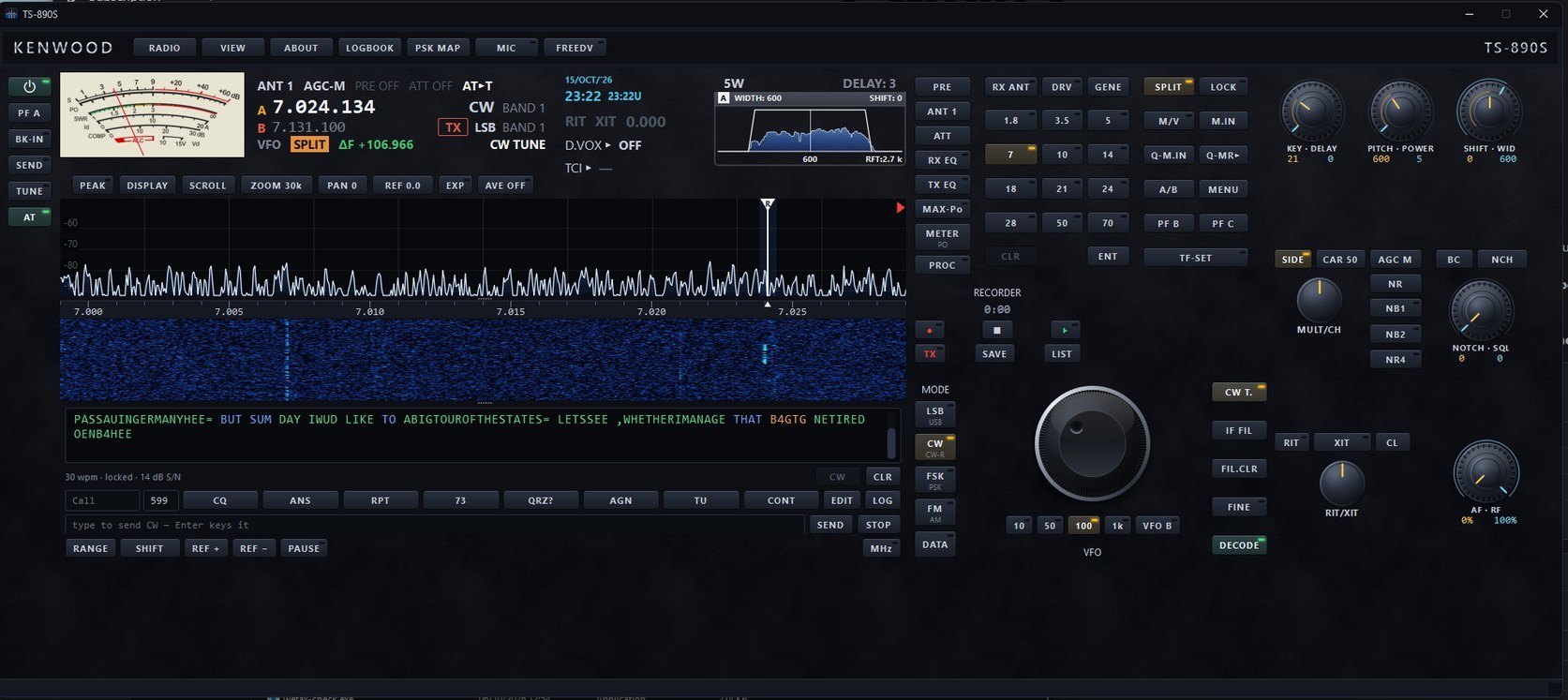
CW in the operating panel
Read decoded CW beneath the waterfall, use message keys or type into the send line. Both VFOs and the split state remain visible alongside the filter display.
TS-890S DESKTOP / PRODUCT TOUR
Radio controls, contacts, conditions and the signals in between. Explore the screens and the work they help you do.
01 / RADIO & AUDIO
A spectrum trace shows activity now; the waterfall preserves its recent history. Click or drag to tune, adjust the scope span and move the passband edges to change the receiver filter.
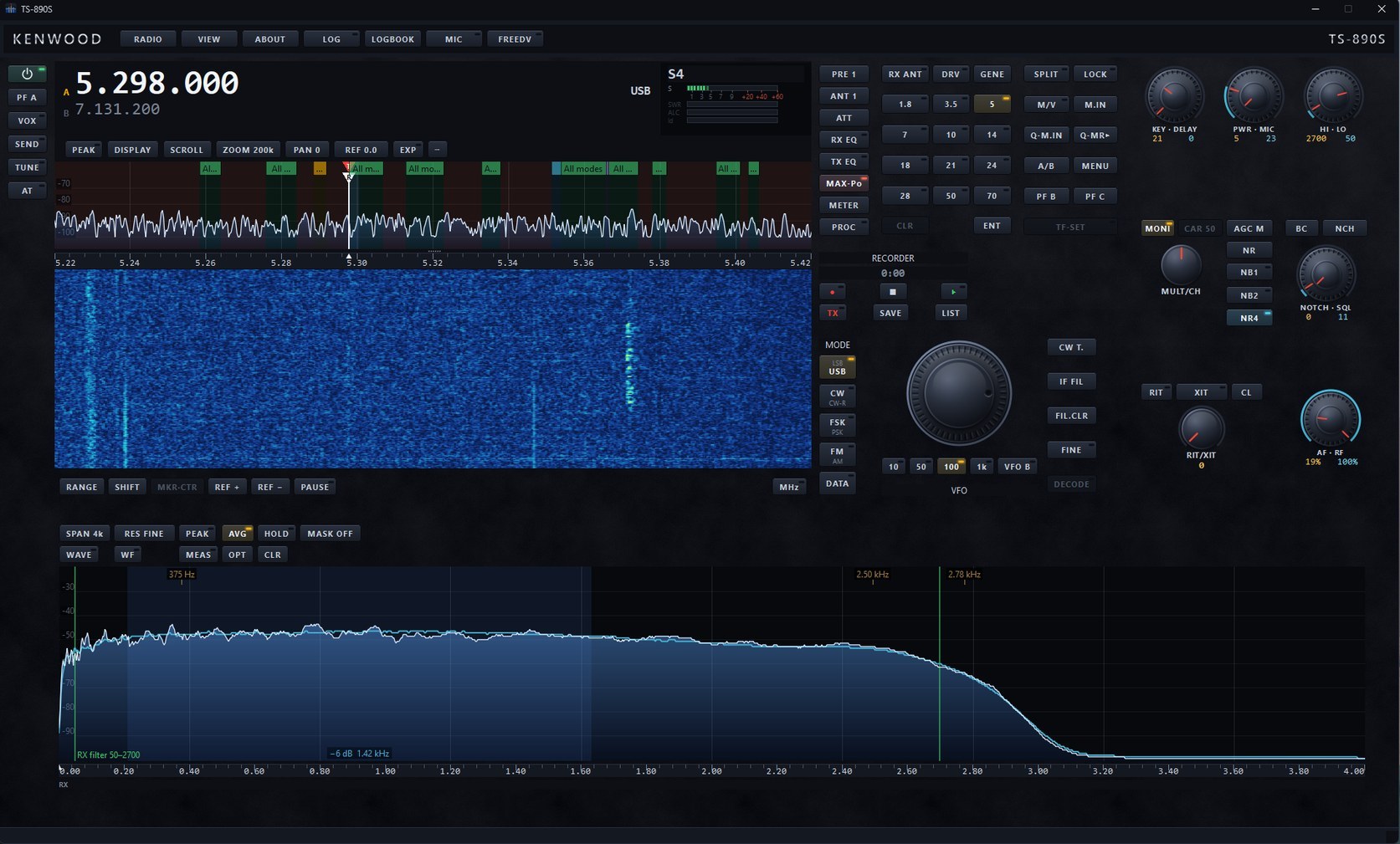
Band-plan overlays are a reference for the selected plan. They warn about an out-of-plan transmission; they do not prevent one.
Read decoded CW beneath the waterfall, use message keys or type into the send line. Both VFOs and the split state remain visible alongside the filter display.
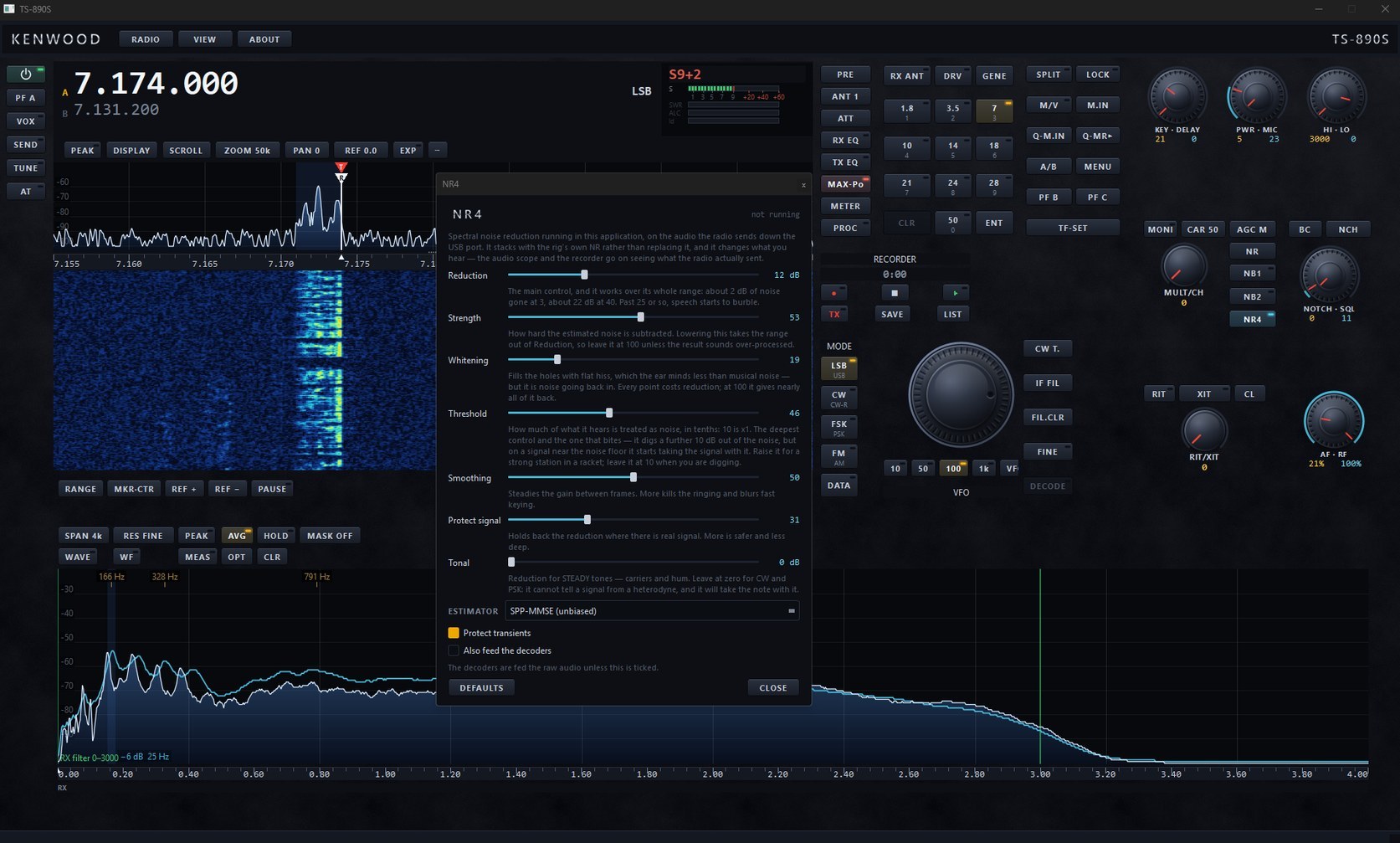
NR4 processes the audio you hear and can run alongside the radio’s own noise reduction. Reduction, whitening and signal protection can be adjusted while the scope and recorder retain the radio’s unprocessed audio.
Arrange control groups, resize the displays and save a layout for the way you operate.
CW, RTTY and PSK31 have receive text, sending controls and eight configurable message macros.
A computer microphone can feed the radio. FreeDV and optional VST 3 processing are covered in the guide.
02 / LOGBOOK & CONTESTS
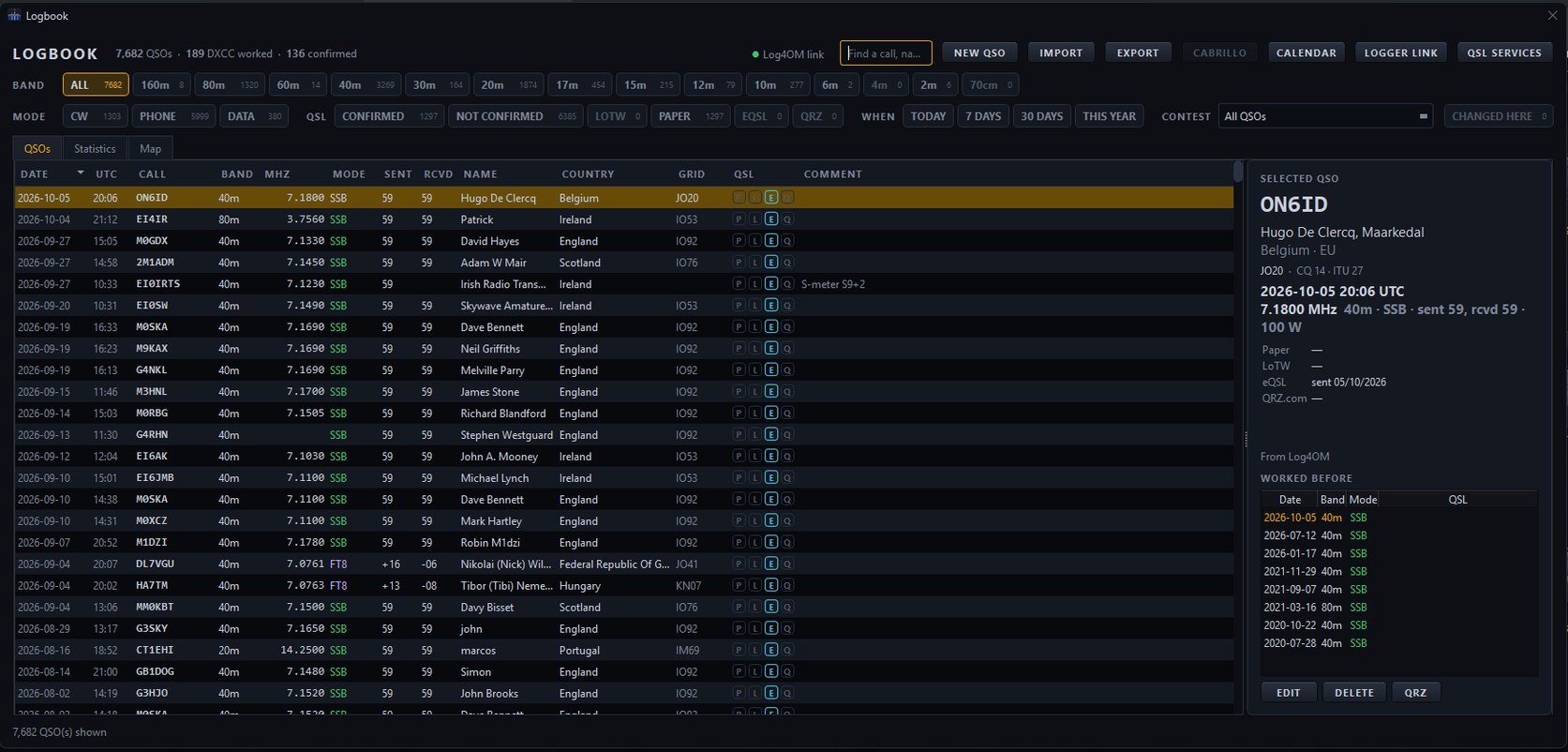
Use the built-in logbook as your station log, or connect it to an existing logger. ADIF import and export keep the records portable, and filters help you find the contact you need.
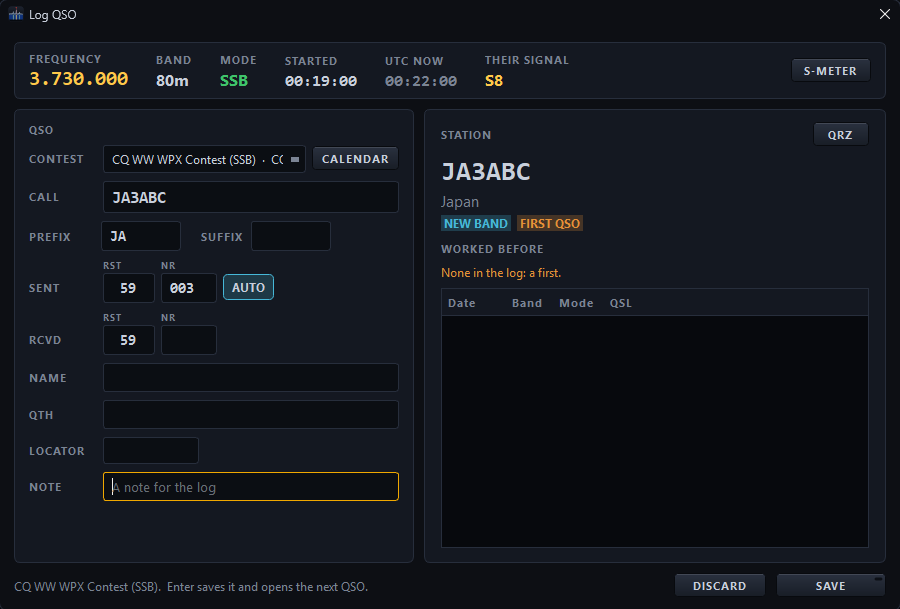
Choose the contest to expose its exchange and serial fields. AUTO advances the sent serial; the station card distinguishes a first contact, a new band and a contest duplicate.
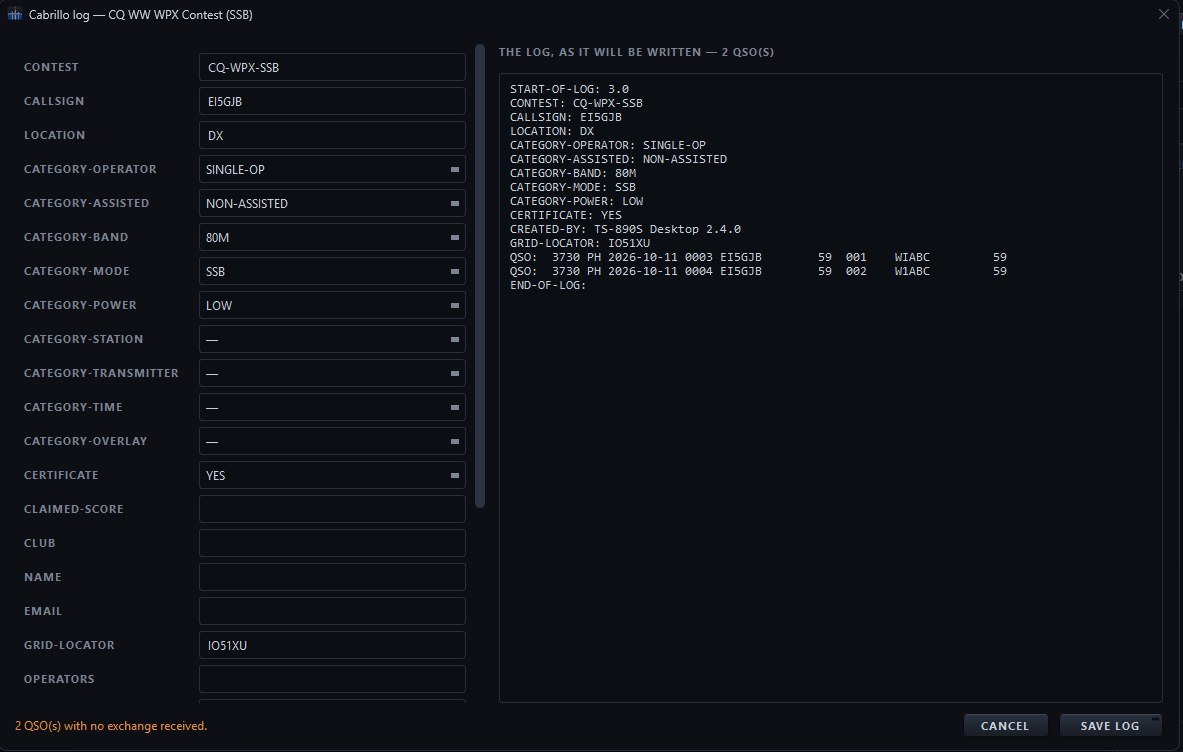
Set the contest and station categories, then inspect the exact Cabrillo header and QSO lines. Missing exchange information is flagged before you save the log.
Filter by band, mode, QSL status, date or contest, and search calls, names, countries or locators.
Review service-specific QSL status and use the guide’s QRZ.com and LoTW setup instructions.
Worked-before history, statistics and the map put individual contacts into the story of your station.
03 / STATION INTELLIGENCE
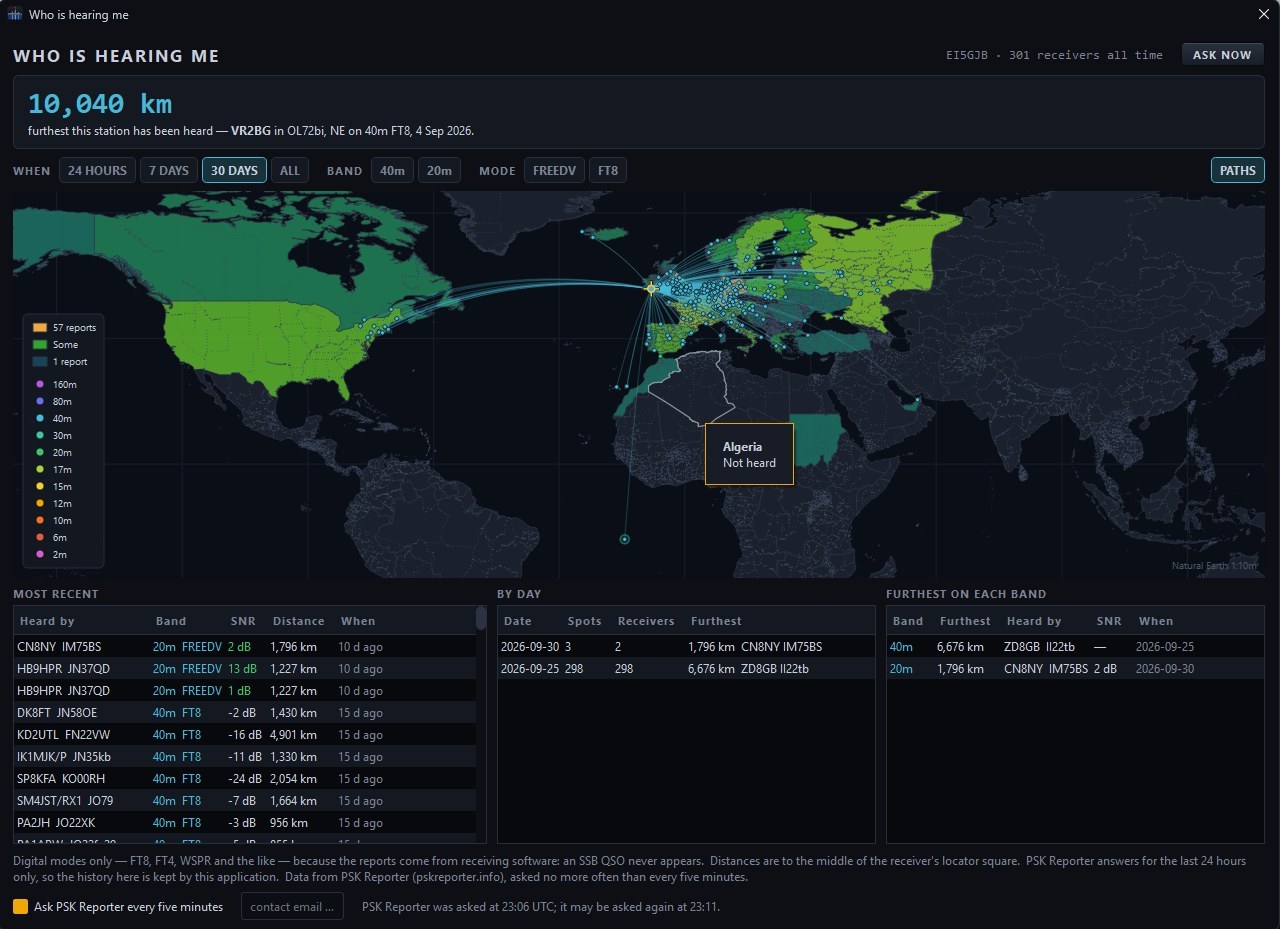
Cluster spots help you find activity, reception reports show who heard your digital signal, and propagation views provide context for the bands.
Filter spots by band, mode and activity, then double-click a spot to tune the radio. The selected station shows its frequency, country, distance, bearing and report source.
The example is filtered to 40 m phone. Sources appear across the top; the right-hand pane offers Tune, Spot It and QRZ, with a separate form for sending your own spot.
Explore the DX cluster, calls to watch and propagation →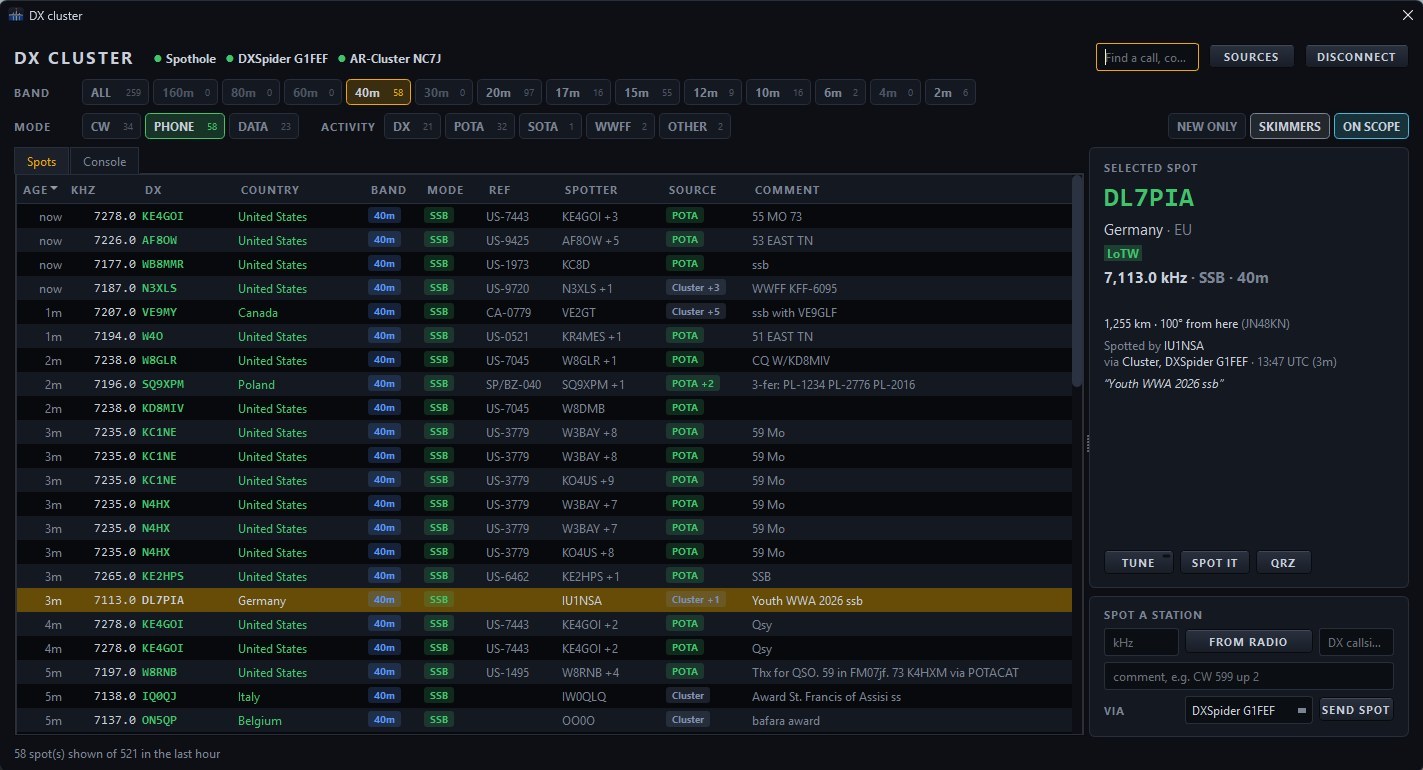
The Space Weather tab brings together solar flux, sunspots, A and K indices, X-rays, solar wind, aurora and band-noise indicators.
Here, the two charts show the planetary K index over three days and solar X-rays over 24 hours. The HF, VHF and Tropo tabs open their own propagation views.
Explore propagation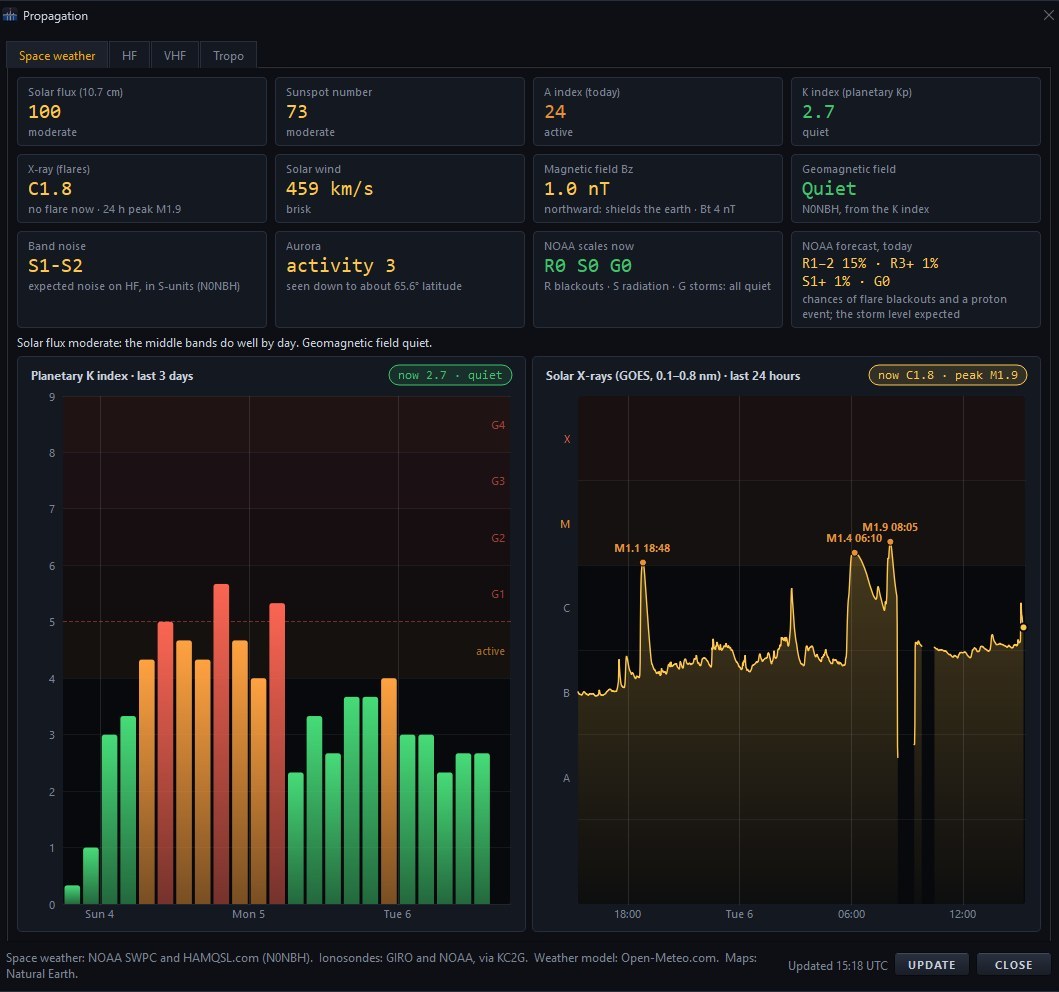
04 / LISTEN & DECODE
Find a shortwave broadcaster, save a frequency for later, or explore the data signals used by ships and aircraft.
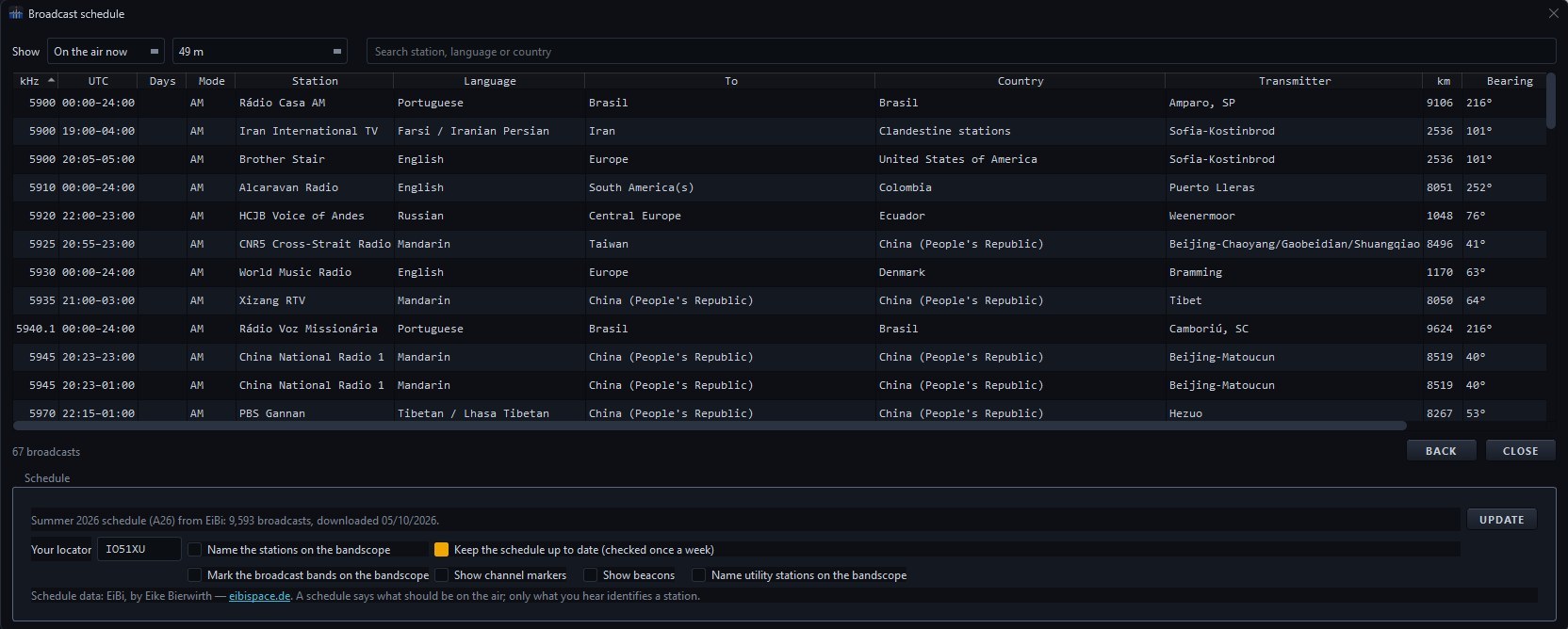
The EiBi broadcast schedule can show what is on now, the whole season or a chosen band. Search by station, language or country; double-click an entry to tune.
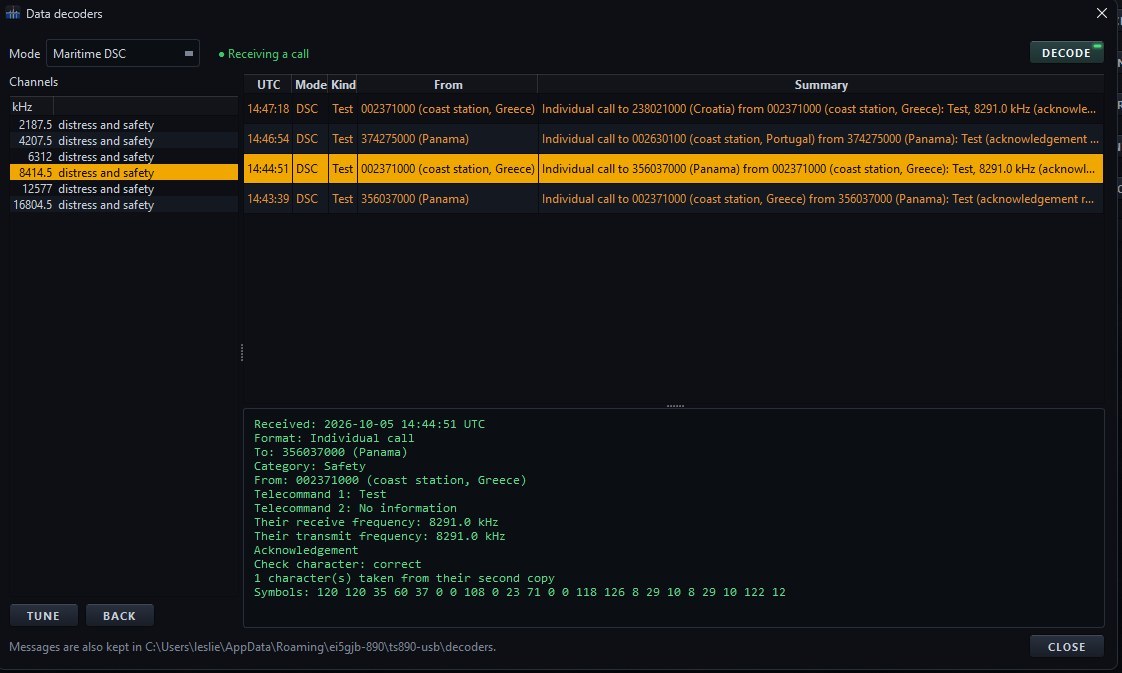
Choose a channel and start the decoder. Received calls appear in the list, while the lower pane expands the selected call’s identity, category, frequencies and acknowledgement.
The guide also covers HFDL, ALE, SELCAL and PACTOR, including the limits of what each decoder reads.
NAVTEX messages and weather-fax charts have their own viewing windows.
Bookmarks, scanning, a listening log and scheduled recordings support longer listening sessions.
Shortwave listening has its own schedule, bookmarks and history. These tools work alongside the radio panel, not only the Remote Receivers directory.
Search the seasonal shortwave schedule by station, language or country; double-click to tune, bookmark or schedule a recording from a broadcast entry.
Guide p. 76 ↗Save named frequencies, modes and decoder settings, choose which to scan, then let the radio pause on an active signal above your chosen squelch level.
Guide pp. 76–77 ↗Keep reception notes with SINPO ratings, export the log to CSV and trace S-meter changes over periods from 15 minutes to 24 hours.
Guide p. 77 ↗Schedule a frequency once or daily. The app must be open and the radio connected at the chosen time; skipped recordings are noted in the log.
Guide p. 82 ↗REMOTE RECEIVERS / KIWI SDR & UBER SDR
Connect to public shortwave receivers from the desktop panel. Follow the radio’s receive dial, tune the receiver independently or follow your TS-890S transmit frequency, including split and XIT. A separate signal meter and waterfall show what the receiver hears.
Search by location, country, callsign or antenna. Filter for an open listener slot, save favourites, adjust the remote filter, record its audio or mute the radio audio while you listen. The SDR directory and session limits are set by the receiver operators.
Explore the receiver screen and controls →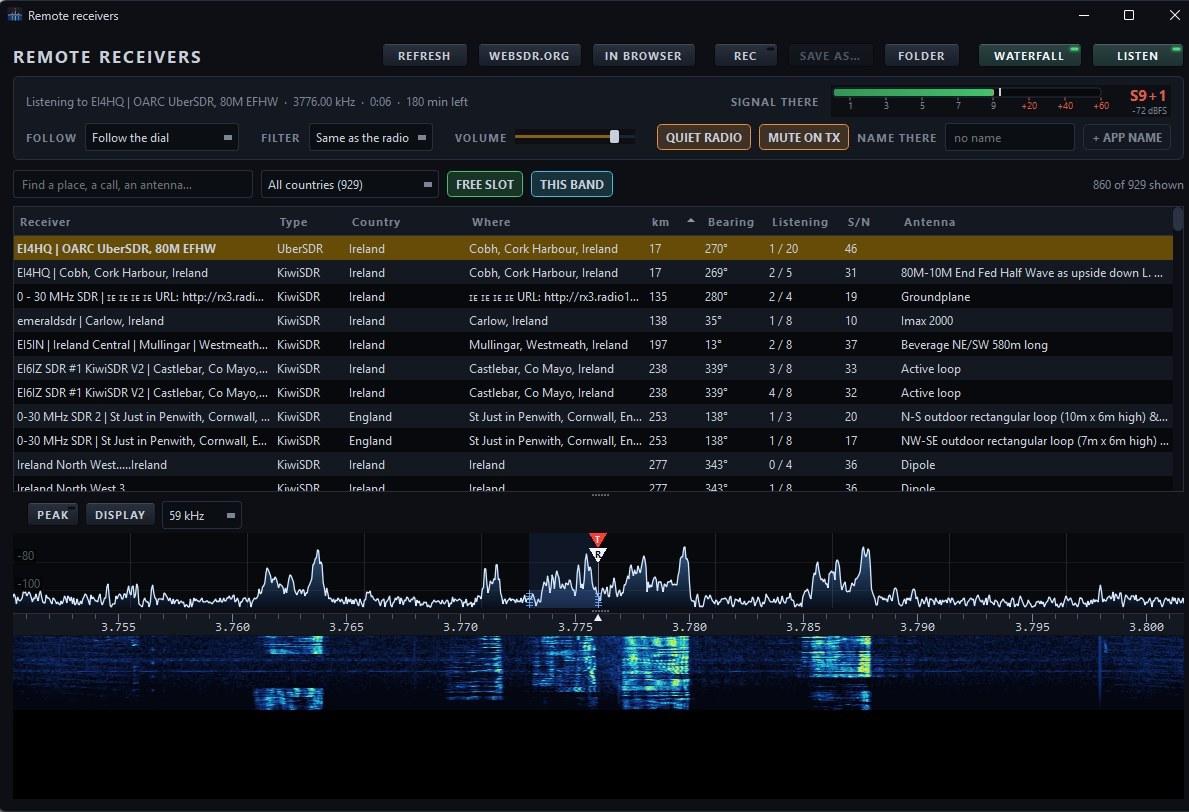
06 / RADIO TOOLS & KEEPING YOUR SETUP
The illustrated guide also explains controls that are easy to overlook: the transceiver’s own menu through CAT, its KNS network settings, scheduled audio recordings, and the database that stores your settings and logbook.
Search radio menu names, item numbers or values. When LAN is connected, the KNS page shows network control and built-in VoIP settings; administrator access is required to change them.
Guide pp. 81–82 ↗Read the connection notes →The POWER control handles the TS-890S start-up sequence over USB, then switches the radio on or off.
Guide p. 82 ↗The settings database also holds layouts, station settings and your logbook. The app makes daily backups and keeps the newest ten; the guide explains how to restore a copy.
Guide pp. 82–83 ↗TS-890S DESKTOP FRONT PANEL
Download the application and keep the illustrated guide beside you.