A receiver that fits
Search by place, country, callsign or antenna. Filter for a free listener slot or for receivers that cover the frequency your radio is on.
TS-890S DESKTOP / REMOTE RECEIVERS
Choose a public KiwiSDR or UberSDR and hear the band through its antenna. Follow the TS-890S receive dial, or listen to your own transmission as it arrives at a distant station.
A SECOND PAIR OF EARS
The application connects to volunteer-operated public receivers over the internet. You listen to one station at a time, using its audio, signal meter, filters and waterfall in the TS-890S Desktop window.
Different from the station relay. Remote Receivers use the public KiwiSDR and UberSDR network. They do not use your TS-890S, Tailscale or the Raspberry Pi Remote Relay. The Remote Relay is for operating your own radio away from home; see Connections.
Search by place, country, callsign or antenna. Filter for a free listener slot or for receivers that cover the frequency your radio is on.
Select a receiver and its audio plays through the same speakers or headset you use for the radio. The application resamples the receiver audio for your sound device.
Follow the dial to compare reception at a distance. Follow your transmit frequency to hear how your signal reaches that receiver, including split operation and XIT.
THE REMOTE RECEIVERS WINDOW / 01
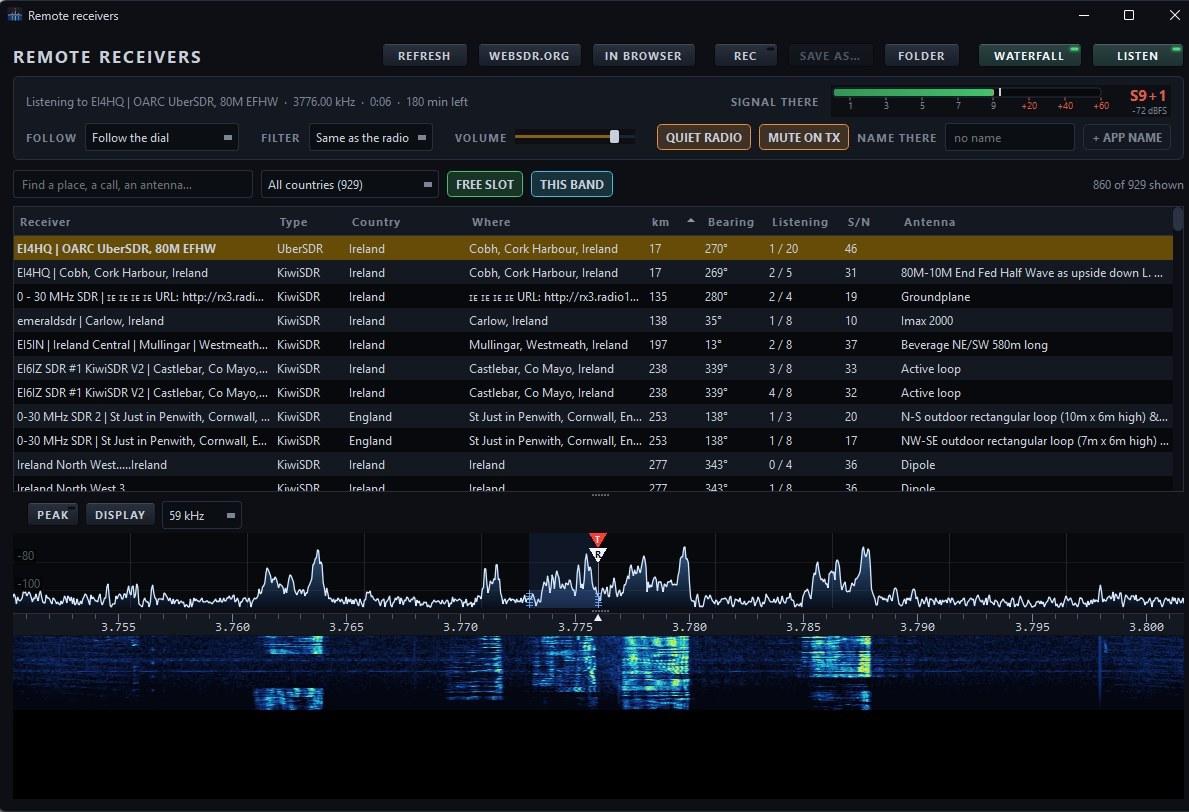
Receiver details and controls sit above the list. The spectrum trace and waterfall below show the same distant band, with the radio and receiver frequencies marked together.
CHOOSE, TUNE, LISTEN
A receiver is shared with other listeners. The window tells you where it is, what it hears and whether it has room, so you can choose a useful path and release it when you are finished.
See receiver type, country, location, distance, bearing, current listeners, signal-to-noise ratio and antenna. Select a country or use the search field; sort by a column heading. Free Slot and This Band reduce the list to receivers you can use now.
Follow the dial tracks where the radio is listening. Switch to Follow where I transmit to monitor your on-air signal from that location, with split and XIT included. Choose Tune it here to operate only the remote receiver’s frequency without moving your TS-890S.
Same as the radio keeps the receiver filter in step with the TS-890S; other bandwidths and a custom filter are available. Change volume, mute the receiver while keeping its listener slot, or mute the radio’s own audio while you listen.
The receiver waterfall has its own frequency scale and shaded filter passband. The TS-890S receive and transmit markers let you compare your frequency with the distant receiver. With a radio-following mode, tuning on the waterfall tunes the TS-890S; in Tune it here, it tunes only the remote receiver.
Star a receiver to save it as a favourite. Favourites stay marked when the lists refresh and are kept between days. The Favourites filter reduces the list to your chosen receivers.
REC records its audio as a WAV file on your computer. Use Save as… or Folder for the recording. In Browser opens the receiver’s own webpage; WebSDR.org opens WebSDR receivers there because they are not available as an in-app receiver connection.
FAVOURITES & LOCATIONS
Keep useful receivers close and move around the directory by country. These views show how those two choices change what appears in the list.
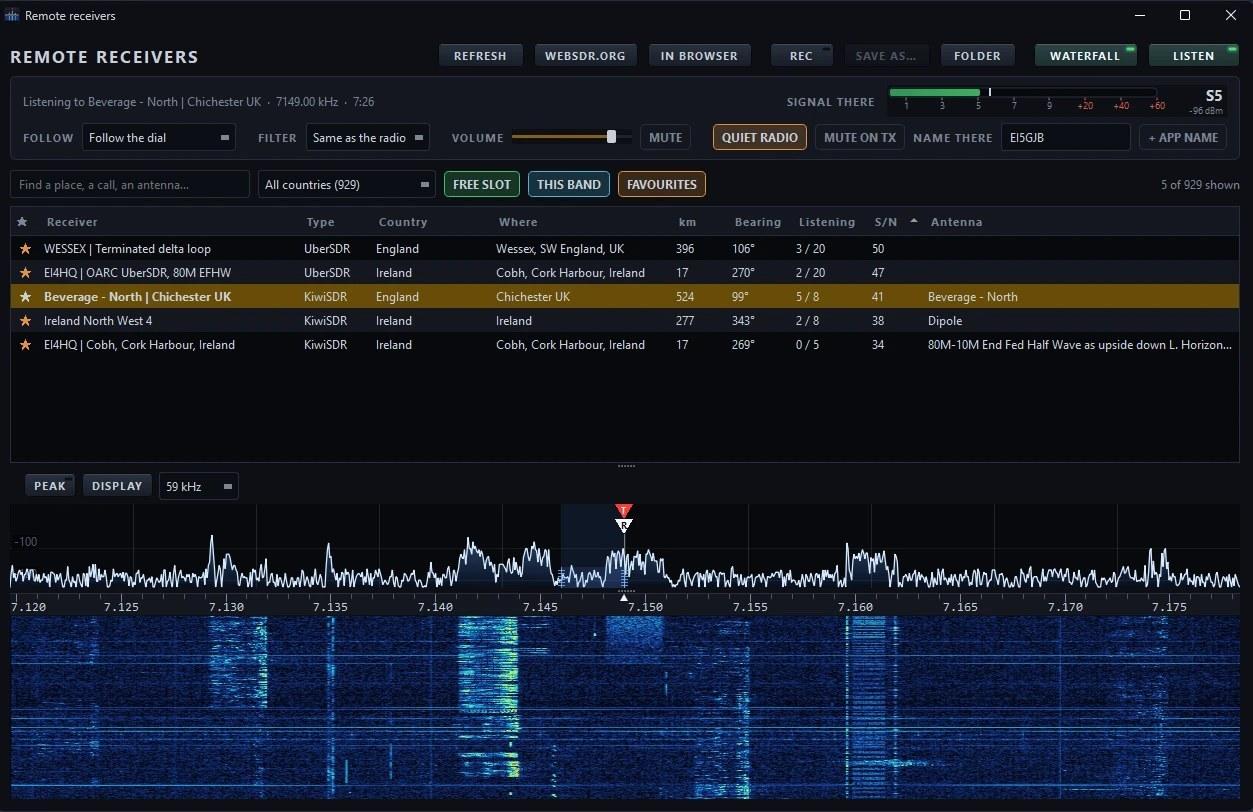
Star a useful antenna, filter to your favourites and keep using the same stations across directory refreshes. In the guide’s example the saved list spans England and Ireland.
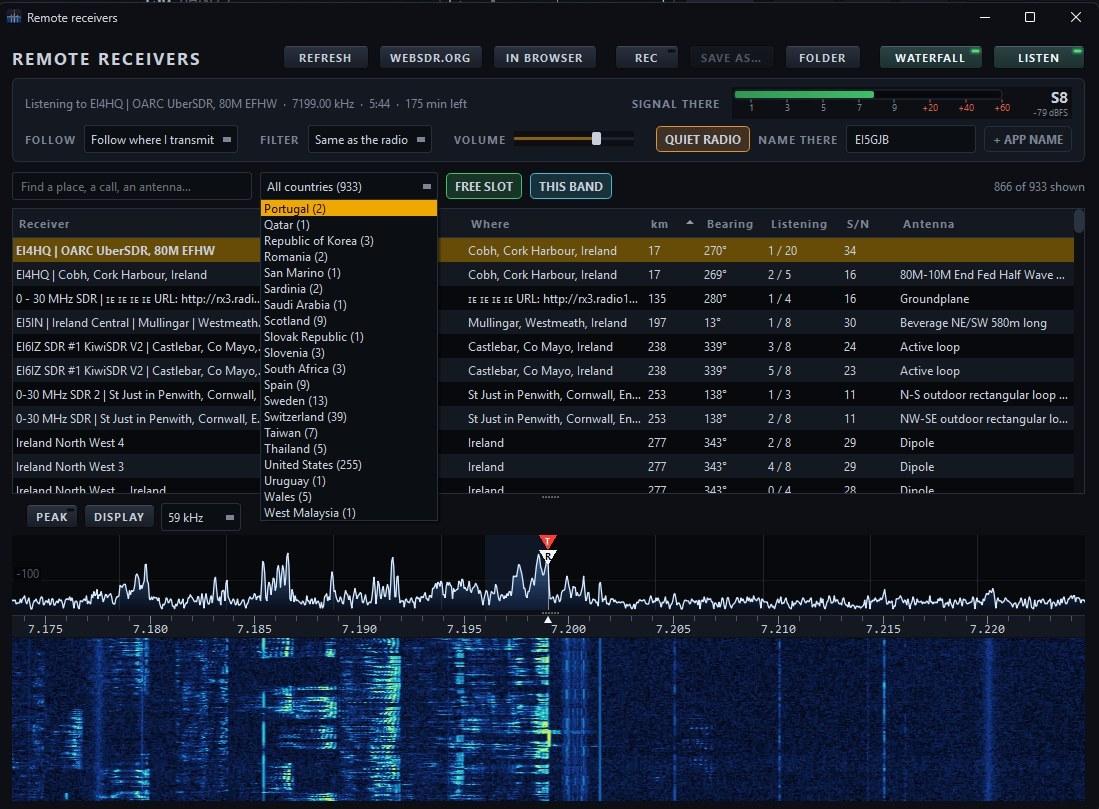
The country list is based on receiver locations, with a count beside each country. Choose one to see only those receiver sites; the selection is remembered for the next visit.
A SHARED RESOURCE
Every listing belongs to someone who decides how many people can listen and for how long. The app uses one listener slot at a time and returns it when you stop listening or close the window.
Mute is not disconnect. It silences the audio but keeps your receiver connection and slot. Press Listen again to stop and make that slot available to someone else.
Quiet RadioStops the TS-890S audio while the public receiver plays.
Mute on TXMutes the public receiver while your own radio is transmitting.
Waterfall availabilityA receiver may have more listeners than waterfall feeds; its audio can continue even when no waterfall feed is free.
Refresh intervalsThe version 2.4 guide documents separate directory refresh schedules for KiwiSDR and UberSDR listings.
Public receiver availability, antennas and listening limits are set by their operators. The directory changes over time; receiver names and counts in these captures are examples from the guide.
OTHER LISTENING TOOLS IN THE GUIDE
Remote Receivers are one listening feature among several. The guide also explains the radio’s broadcast schedule, bookmarks, scanner, reception log, signal history and scheduled recordings.
Search shortwave broadcasts by station, language or country. Show what is on air now or the season’s schedule; tune a station or create a recording from its entry.
See the schedule screen →Guide p. 76 ↗Save named frequencies with their modes and decoder settings. Choose which to scan; the app pauses when a signal clears your squelch level.
Guide p. 76 ↗Keep reception notes in a log of what you hear. Track signal strength over minutes or hours, then export the listening records or signal data to CSV.
Guide p. 77 ↗Schedule a frequency once or daily. The app must be running and the radio connected when it is due; missed jobs are noted in its log.
Guide p. 82 ↗THE REST OF THE OPERATING GUIDE
The illustrations and operating notes cover features beyond the main panel, including radio menu access and how the application protects and restores the station setup.
Search radio menu items by name, menu number or value. The separate KNS page shows network control, VoIP and session settings when the LAN link is connected; changes require administrator login.
Guide pp. 81–82 ↗How it connects →The settings database also contains the application’s saved layouts, station settings and logbook. The guide explains its daily backups, the newest ten copies, and how to restore one safely.
Guide pp. 82–83 ↗The POWER control handles the TS-890S start-up sequence over USB, then switches the radio on or off from the desktop.
Guide p. 82 ↗TS-890S DESKTOP FRONT PANEL
See the controls, station tools, connections and the full illustrated user guide.